About visualization🔗
Note
While this section is about .NET applications, its content is also applicable to application development in other languages.
Applications can use an instance of HSmartWindowControl to display results.
However, this is only available for .NET Framework and the MVTec.HalconDotNet-Windows .NET Core packages.
How to configure this control is described in Customizing HSmartWindowControl for visualization.
The actual display operators do not use the control but the HALCON graphics window (class HWindow) encapsulated inside.
You can access the graphics window via the property HalconWindow of HSmartWindowControl:
private HWindow            window;

private void Form1_Load(object sender, System.EventArgs e)
{
  window = windowControl.HalconWindow;
}
In the code above, the variable for the instance of HWindow was declared globally and initialized in the event Load of the form.
You can configure the display parameters like pen color or line width with the operators in the operator reference section Graphics > Parameters:
Images and other iconic objects are displayed with the operator DispObj, which can be called via the object to display with the window as parameter or vice versa:
More display operators, for example, to display lines or circles, can be found in the operator reference section Graphics > Output.
Instead of (or in addition to) using HSmartWindowControl, you can also open a HALCON graphics windows directly with the operator OpenWindow:
In the code above, the window was opened “free-floating” on the display.
You can also open it within another GUI element by passing its handle in the parameter fatherWindow.
Before displaying anything in the graphics window, you should set the image part to display with the operator SetPart.
In the example code below, the opened window is used to display a zoomed part of the image:
Window controls for visualization🔗
The following documentation uses Visual Studio and .NET Framework, the same application functionality is possible in .NET Core.
Depending on which graphical subsystem a project is based on, a specific window control is available in the Visual Studio toolbox.
HSmartWindowControl(Windows Forms)HSmartWindowControlWPF(WPF)
See also Using other GUI libraries.
Smart window control vs. HWindowControl🔗
The smart window control provides several advantages over HWindowControl:
- It is used like any other control (for example, it can be embedded in
TabControlsorScrollViewers, or overlaid with other controls). - Predefined mouse interaction is provided (moving of the window contents and zooming using the mouse wheel). The view can be reset by double-clicking the window.
- The control automatically rescales without flickering.
Mouse usage with HSmartWindowControl🔗
In contrast to HSmartWindowControlWPF, a callback is required for HSmartWindowControl to enable zooming using the mouse wheel:
In addition, you need to transform the mouse coordinates, so that they are relative to the upper left corner of the HSmartWindowControl:
private void my_MouseWheel(object sender, MouseEventArgs e)
{
    Point pt = windowControl.Location;
    MouseEventArgs newe = new MouseEventArgs(e.Button, e.Clicks,
                                                 e.X - pt.X, e.Y - pt.Y, e.Delta);
    windowControl.HSmartWindowControl_MouseWheel(sender, newe);
}
Smart window control events🔗
Using the smart window control, the following events are triggered and can be reacted to:
ClickGotFocus,LostFocusMouseEnter,MouseLeave,MouseHoverResize,SizeChangedKeyDown,KeyUp,KeyPress
Unsupported operators🔗
Not all operators can be used with the smart window control. The following operators are not supported:
draw_nurbs, draw_nurbs_mod, draw_nurbs_interp, draw_nurbs_interp_mod, drag_region1, drag_region2, drag_region3
Instead, use drawing objects.
Customizing HSmartWindowControl for visualization🔗
Note
In the following, the term HSmartWindowControl is used for simplicity.
Read it as HSmartWindowControlWPF if your project is based on WPF.
The same applies to the older HWindowControl correspondingly.
In most applications, you want to visualize at least some results.
Start by adding HSmartWindowControl to the form by double-clicking the corresponding icon in the toolbar.
An empty (black) window appears; see Figure 1.
Note that some properties are only available for HSmartWindowControlWPF elements.
All properties of the HSmartWindowControlWPF support data binding.
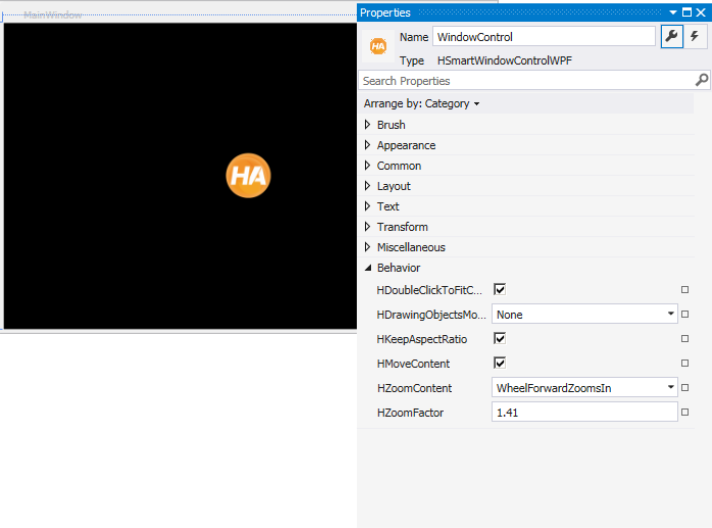
Important
Do not modify the Brush properties in Visual Studio.
They are disabled for HSmartWindowControlWPF to prevent undesired side-effects.
HColor- Specifies the color of
HRegionandHXLDContobjects HColored- Specifies the colors for displaying multiple
HRegionorHXLDContobjects in different colors HDisableAutoResize- If set to true, images are not automatically scaled when they are displayed.
HDisplayCurrentObject- Displays the assigned
HImageorHObject HDoubleClickToFitContent- If set to true (the default), double clicking resizes the content of the
HSmartWindowControlto fit the size of the control.
IfHKeepAspectRatiois also set to true, the contents are rescaled so that the aspect ratio is maintained. HDraw- Specifies the fill mode of
HRegionobjects.
IfHDrawis set to ‘fill’, output regions are filled, if set to ‘margin’, only contours are displayed. HDrawingObjectsModifier- Specifies the modifier key to interact with drawing objects.
If a modifier key is set, the user can only interact with drawing objects while keeping the modifier key pressed. This is especially useful when interacting with XLD drawing objects. By default, it is set toNone. Other possible values areAlt,Ctrl, orShift. HFont- Specifies the font for displaying messages in the
HSmartWindowControlWPF HImagePart- Specifies the image part of the corresponding HALCON window.
Note that the part is specified with the valuesX,Y,Width, andHeight, whereas the corresponding operatorSetPartexpects the four corner points. You can modify the displayed part in your application at any time, for example, to display a zoomed part of the image. HKeepAspectRatio- If set to true (the default), the content of the
HSmartWindowControlkeeps its aspect ratio when the control is resized or zoomed. The aspect ratio is the quotient Width/Height set at design time withHImagePart. HLineStyle- Specifies the contour pattern of
HRegionandHXLDContobjects HLineWidth- Specifies the contour thickness of
HRegionandHXLDContobjects HMoveContent- If set to true (the default), the contents of the HALCON window can be dragged using the mouse.
HZoomContent- Specifies the behavior of the mouse wheel.
If set toWheelForwardZoomsIn(the default), the contents of the HALCON window is zoomed in and out when moving the mouse wheel forwards and backwards, respectively. Setting the property toWheelBackwardZoomsInreverses the behavior. If set toOff, zooming using the mouse wheel is disabled. HZoomFactor- Specifies the step size when zooming with the mouse wheel.
The default is1.41. Values must be greater than 1 and less or equal to 100. A higher value leads to faster zooming.
HSmartWindowControlWPF can be used to implement the Model-View-Viewmodel (MVVM) pattern, as all properties of the control support data binding.
By adding objects to the Items collection or setting the ItemsSource property, you can specify what the control should display, also in pure XAML code.
Example
The following example illustrates how to show an image, color a region in “magenta”, and display a text message:
<ha:HSmartWindowControlWPF HDraw="fill">
  <!--Iconic items can be added using HIconicDisplayObjectWPFs-->
  <ha:HIconicDisplayObjectWPF IconicObject="{Binding DisplayImage}"/>
  <!--Also with individual drawing properties-->
  <ha:HIconicDisplayObjectWPF IconicObject="{Binding DisplayRegion}"
  HDraw="margin" HColor="magenta"/>
  <!--Messages can be displayed using HMessageDisplayObjectWPFs-->
  <ha:HMessageDisplayObjectWPF HMessageText="{Binding ImageName}"/>
</ha:HSmartWindowControlWPF>
DisplayImage, DisplayRegion and ImageName have to exist in the DataContext of HSmartWindowControlWPF.