Quick start🔗
This section demonstrates how to create a simple HALCON application with each of the available interfaces – HALCON/C++, HALCON/.NET, HALCON/Python, and HALCON/C.
For a more comprehensive description, see Basics of the interfaces and Deploying applications.
Task: Read an image and compute the number of connected regions in it, as illustrated in Figure 1.
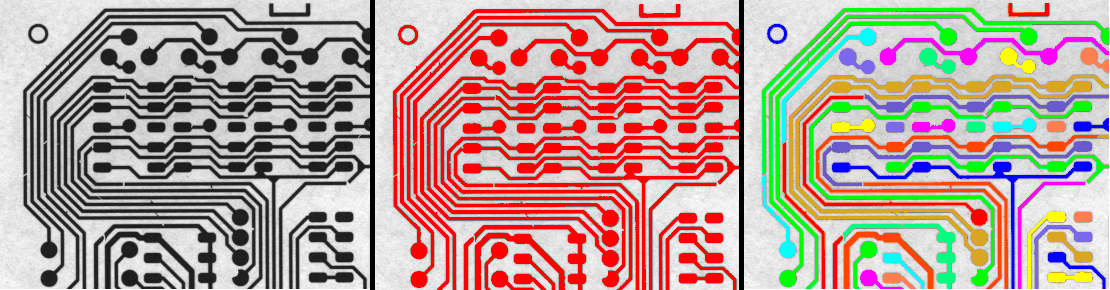
threshold, colored red (middle) – Connected regions, a result of connection (right) Solution: Depending on the used interface, the following steps are required to create the example program.
-
Install HALCON 26.11.
-
Install a C++11 (or newer) toolchain on your system.
-
Set up your C++ development environment of choice.
-
Run the following commands in a shell:
-
Create a file named
main.cppand add the following content: -
Compile the program.
For more information, see Creating an application. -
To run the application, enter the following command in the same shell:
As a result, you should see the following output:
'Number of Regions: 43'
-
Install HALCON 26.11.
-
Install the .NET Core SDK for your system.
-
Run the following commands in a shell:
-
Change the content of
Program.csto the following: -
To run the application, enter the following command in the same shell:
As a result, you should see the following output:
'Number of Regions: 43'
-
Install HALCON 26.11.
-
Install Python 3.8 (or later) on your system.
-
Set up your Python environment of choice, for example:
-
Run the following commands in a shell:
-
Create a file named
program.pyand add the following content: -
To run the application, enter the following command in the same shell:
As a result, you should see the following output:
'Number of Regions: 43'
-
Install HALCON 26.11.
-
Install a C99 (or newer) toolchain on your system.
-
Set up your C development environment of choice.
-
Run the following commands in a shell:
-
Create a file named
main.cand add the following content:#include <stdio.h> #include <inttypes.h> #include <HalconC.h> int main() { Hobject img; read_image(&img, "pcb"); Hobject region; threshold(img, ®ion, 0, 122); Hobject connected_regions; connection(region, &connected_regions); Hlong num_regions = 0; count_obj(connected_regions, &num_regions); printf("Number of Regions: \%" PRIdPTR "\n", num_regions); } -
Compile the program.
For more information, see Creating an application. -
To run the application, enter the following command in the same shell:
As a result, you should see the following output:
'Number of Regions: 43'