Using HALCON Variable Inspect🔗
The inspection window is divided into two tabs Locals and Watch (see Figure 1).
- Locals tab
- The Locals tab provides a list of all local HALCON variables from the current scope of the program.
- The Locals tab provides a list of all local HALCON variables from the current scope of the program. The variable list is automatically updated if the scope of the program changes.
- Watch tab
- The Watch tab contains only selected HALCON variables that have been added by the user to the “Watch” list. It also allows the inspection of global HALCON variables. Variables can only be added to the “Watch” list if the program has reached a break point. In addition, local variables can only be added if they are currently in scope.
Watching variables🔗
Do one of the following to add a HALCON variable to the “Watch” list:
-
Mark a variable in the program code. Then drag the selected variable from the program code to the “Watch” list.
-
Right-click the variable in the program code and select Add to HALCON Watch from the context menu.
-
Right-click a variable in the “Locals” list and select Add to Watch from the context menu.
Tip
The fewer variables are listed in the inspection window, the better the performance. Therefore, moving only the desired variables to the “Watch” list and inspecting the variables in the Watch tab improves the performance.
Changing the order of inspected variables🔗
By default, the variables in the inspection window are listed in the same order as in the Locals window of Visual Studio. The variables can be sorted in descending or ascending order by clicking the header of the respective columns in the inspection window. To switch back to the default order, click the header of the column “#”.
Selecting a variable🔗
To select a variable for the inspection, click the corresponding entry in the variable list of the inspection window.
If the debug information and HALCON data of the variable has already been retrieved, that is, if Status has a green checkmark, the value of the variable is displayed.
Otherwise, the retrieval of the HALCON data is started and the value of the variable is displayed if the data could be retrieved.
To enforce a complete new retrieval of the data, even for variables whose data have already been obtained, double-click the variable.
The inspection window is automatically updated if the content of the currently displayed variable changes.
Deselecting a variable🔗
To deselect a variable, press Ctrl and click the respective line of the variable.
Alternatively, right-click the line of the variable and select Deselect all from the context menu.
In some cases, it is desired to display the data of a variable again.
This can be achieved by deselecting and selecting the variable again or by double-clicking it.
If a member of a variable cannot be resolved, e.g., if the variable is related to a class, it is not sufficient to inspect only the member of this variable. Instead, mark the complete expression before right-clicking and inspecting the member variable.
Provided information🔗
- Control variables
- The following information is displayed for control variables (tuples):
Name of the control variable, type, and length. The actual values are displayed as a list from 0 to length − 1. - Iconic variables
- Iconic variables are displayed graphically in the inspection window.
Apart from the visualization of the content, the following information is displayed:
- Name of the iconic variable, type, number of channels (for images), and the dimensions (for images)
- Gray value (v), row (r), and column (c) at the mouse position
- Iconic variables can be stacked: For example, image data may be overlayed with region data by first inspecting the image variable and then the region variable.
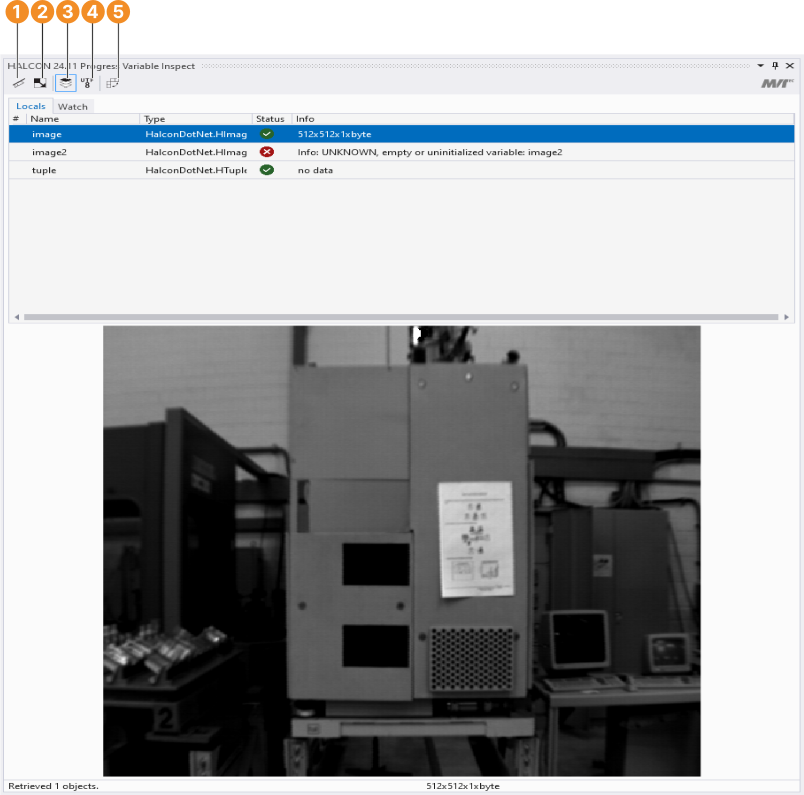
Clear inspection window and free the retrieved data.
Fit image into graphics window.
Only display last iconic object.
Switch interpretation of string values between system locale and UTF-8.
Typically, this setting should match the used HALCON/C++ interface encoding as specified with HalconCpp::SetHcppInterfaceStringEncodingIsUtf8.
Switch layout between vertical and horizontal.
Getting help for operators🔗
You can open the operator reference of a specific operator right from the context menu of Visual Studio: Move the mouse cursor over a method name, right-click it and select HALCON Help.