Running and debugging programs with HDevelopEVO🔗
Prerequisite: Loading a configuration🔗
Before you can run a program or start debugging, a configuration has to be loaded.
To load a configuration, do one of the following:
- Open a project folder or
- open a workspace.
Running and debugging a program🔗
Important
You can only run a program or use autocompletion if you have saved the HSCRIPT file before.
Debugging a program🔗
To start debugging:
-
Open the Debug View by clicking in the First Activity Bar.
-
Choose Launch HALCON Script (HALCONEngine) as your configuration.
-
Click the button or press F5.
-
To execute the whole script until you hit a breakpoint, click or press F5.
To execute line after line, click or press F10.
It’s also possible to debug more than one file. To debug one file after another, click through them in the THREADS view.
Running a program without debugging🔗
If you just want to run the program from start to finish, select the Run > Start Without Debugging menu entry or press Ctrl+F5. All stop instructions and breakpoints are ignored in this case. Exceptions will still stop execution.
Working with breakpoints🔗
Using breakpoints, you can pause the execution of your program at a specific line of code.
To set a breakpoint:
- Ensure that debugging is enabled.
- Do one of the following:
- Place the cursor on the corresponding code line and then press F9.
- At the corresponding code line, click in the left margin of the editor.
The breakpoint is indicated by a red dot in the left margin of the editor. Further, all breakpoints are listed in the BREAKPOINTS area of the primary sidebar.
Jump to cursor🔗
When hovering over the line numbers on the left, a hint appears. To let your cursor jump to that line, click on the line number. Execution will resume from this line, disregarding all lines in between.
Inspecting and watching variables🔗
You can inspect control and iconic variables.
This allows you to see their current value at a given time.
Additionally, you can watch variables while running a script.
In this case, their current value is shown and updated at all times during execution.
To inspect variables, you have the following options:
-
Open the Debug View by clicking in the First Activity Bar. When you expand the drop-down within the VARIABLES view, you can display all the parameters contained in the handles of your script. The control variables and the iconic variables are shown in a tree structure. By expanding it, you get more information about the variables.
-
Iconic variables will additionally be shown in the ICONIC VARIABLES VIEW as thumbnails, and can also be inspected in the graphics window inside the GRAPHICS view.
-
Double-click an iconic variable in the VARIABLES view to display it in the graphics window. If not open already, the graphics window opens. Alternatively, you can right-click the variable and use the corresponding entry in the context menu.
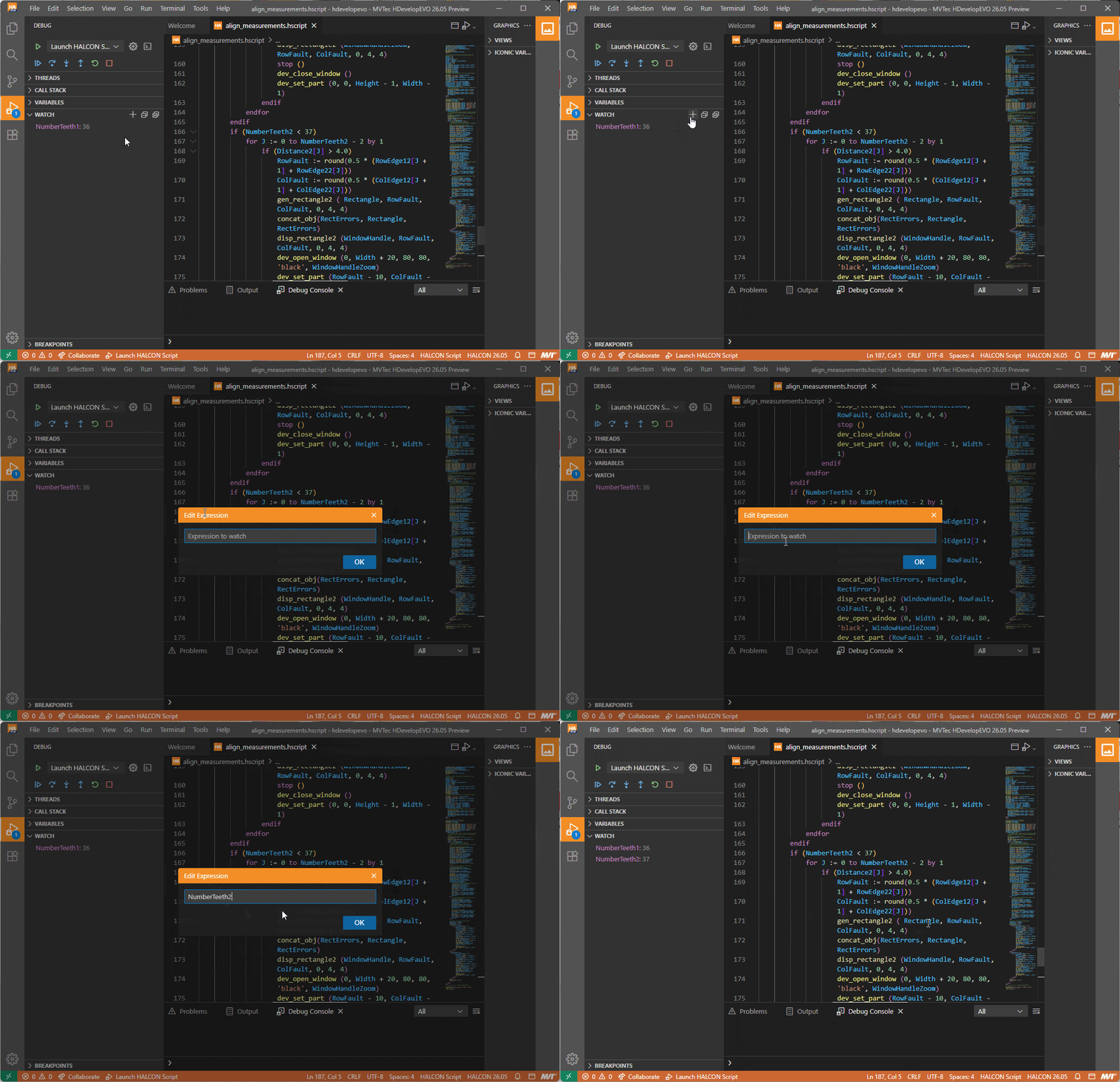
To watch variables, do the following:
- Open the Debug View by clicking in the First Activity Bar.
- Expand the WATCH drop-down.
- Click to add a new watch expression.
- Enter the name of the variable you want to watch, and then click OK.
Preview restriction
Watching expressions is not yet supported.