Optimization🔗
Preprocessing images🔗
There are various possibilities of preprocessing bar codes. Some of the most common ones are listed below.
If a bar code image is a bit blurry, emphasize can be used to emphasize high frequency areas of the image and, therefore, let it appear sharper.
The operator zoom_image_factor enlarges a bar code that is too small to be read.
In case of low resolution (< 2.0 pixels element size), operators like emphasize, zoom_image_factor, or mean_image should not be used for preprocessing, as crucial information could be lost after the image manipulation.
See the section on 'small_elements_robustness' in the operator reference of set_bar_code_param for details.
Low contrast images can be enhanced by scaling the gray value range with scale_image (or easier with the external convenience procedure scale_image_range).
HALCON expects bar codes to be printed dark on a light background.
To read light bar codes on a dark background you must first invert the image using the operator invert_image.
The bar code reader can handle perspective distortions up to a certain extent. For very strong distortions, it might be necessary to rectify the image before applying the bar code reader.
How to perform the rectification for a bar code that is printed radially on a CD is shown in the description of the example program %HALCONEXAMPLES%/hdevelop/Applications/Bar-Codes/circular_barcode.hdev.
Adjusting the bar code model🔗
Speedup🔗
There are two cases in which you can improve the performance.
The first case concerns images with too many false candidates, which are scanned with the default value of 10 scanlines each, whereas a valid bar code itself is usually decoded after one or two scans.
Reducing the number of scanlines therefore leads to a significant speedup.
Note that if the bar code cannot be detected after reducing the number of scanlines, the number has to be increased again.
The second case concerns images with stacked bar codes (currently RSS-14 Stacked, RSS-14 Stacked Omnidirectional, and RSS Expanded Stacked).
The reader evaluates by default the necessary number of scanlines, 20 for RSS-14 Stacked and 55 for RSS Expanded Stacked, which may be higher than necessary.
If an RSS Expanded Stacked code does not have the maximum possible number of rows, it is useful to specify the number of scanlines with the parameter 'num_scanlines' (the reader uses 5 scanlines per row).
Consequently, the performance is increased.
Both cases are demonstrated in the example %HALCONEXAMPLES%/hdevelop/Identification/Bar-Code/barcode_param_num_scanlines.hdev.
If the number of bar codes per image is known, decoding time can be decreased by specifying this number with the parameter 'stop_after_result_num' of the operators set_bar_code_param or set_bar_code_param_specific.
This way, the detection of false codes after all existing bar codes have already been read can be prevented and, as a consequence, processing can be sped up.
Increase bar code detection robustness🔗
The parameter 'min_identical_scanlines' specifies how many successfully decoded scanlines with identical result are required to decode a bar code.
If this parameter is not set, a bar code is considered as decoded after the first scanline was successfully decoded.
It can be useful to increase the value of this parameter when working either with an image containing lots of noise or with various bar codes to prevent the detection of false bar codes.
The use of the parameter is demonstrated in the example %HALCONEXAMPLES%/hdevelop/Identification/Bar-Code/barcode_param_scanning_control.hdev.
In some cases it might be useful to decode a bar code based on the majority of all scanlines instead of the numbers of identical scanlines, for example, if false decode results shall be reduced.
The parameter 'majority_voting' specifies the selection mode for the decode result.
If this parameter is not set, a bar code is decoded successfully if the minimum number of scanlines was decoded as described above.
If this parameter is set to ‘true’, a majority voting scheme is used to select between different scanline results and the overall result is decoded by the majority of all scanlines.
The use of the parameter is demonstrated in the example %HALCONEXAMPLES%/hdevelop/Identification/Bar-Code/barcode_param_majority_voting.hdev.
Enforce verification of the quiet zone🔗
HALCON is able to read bar codes even if their quiet zones are violated.
However, the parameter 'quiet_zone' can be used to handle quiet zone violations more rigidly.
The use of this parameter is demonstrated in the example %HALCONEXAMPLES%/hdevelop/Identification/Bar-Code/barcode_quiet_zone.hdev.
Adapt tolerance for start/stop matching criteria🔗
The 'start_stop_tolerance' specifies the tolerance for detecting the start- and stop pattern.
A less tolerant criterion increases the robustness against false detections, but might reduce the general detection rate.
This criterion can be activated by setting the parameter to ‘low’.
A ‘high’ tolerance is recommended if the boundary of the symbol in the image is clearly visible, the image is not noisy, and the symbol does not contain bar codes of different types.
Note that the parameter is currently only implemented for Code 128.
How to adapt the parameter 'start_stop_tolerance' to avoid misdetection is demonstrated in the example %HALCONEXAMPLES%/hdevelop/Identification/Bar-Code/barcode_param_scanning_control.hdev.
To query the values that are currently used for the individual parameters, you can apply the operator get_bar_code_param.
Determine bar code parameters by training🔗
In order to determine the best parameter settings, an automatical training can be performed.
The advantage of this training is an increased robustness of the bar code reader.
Furthermore, the decoding time can be reduced as a side effect.
Parameter settings can be determined for 'element_size_min', 'element_size_max', 'orientation', 'meas_thresh', and 'meas_thresh_abs'.
To activate the training mode, use the operator create_bar_code_model to create a model for the training and set the generic parameter 'train' to a tuple of parameter names that should be trained or 'all' to train all bar code parameters that are available for the training.
To determine all parameters with given properties, for example, 'trained', the operator query_bar_code_params can be used.
How to perform the training is demonstrated in the example %HALCONEXAMPLES%\hdevelop\Identification\Bar-Code\barcode_training.hdev.
Reading bar codes🔗
The operator find_bar_code allows you to either find one bar code type or several bar code types in one call.
When reading one code type, choose the type - if it is known - as 'CodeType'.
Autodiscrimination🔗
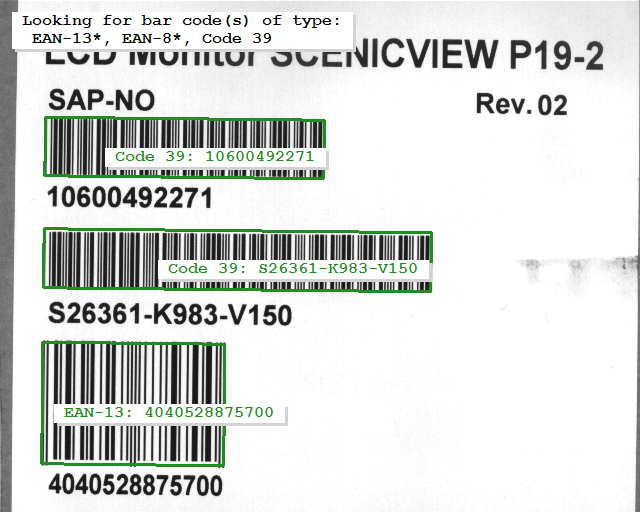
Autodiscrimination describes the simultaneous decoding of multiple bar code types.
It is activated by setting 'CodeType' to 'auto' or by choosing the expected bar code types.
Note, however, that each allowed bar code type increases the runtime of the operator and too many bar code types may decrease the reliability of the decoding.
You should at least exclude all definitely not occurring bar code types that are scanned before the first expected bar code type occurs or, even better, just scan for the expected bar code types (see Figure 1).
For more information on autodiscrimination including the decoding order, please refer to the documentation of find_bar_code.
Furthermore, the example %HALCONEXAMPLES%\hdevelop\Identification\Bar-Code\barcode_autodiscrimination.hdev demonstrates the practical use of autodiscrimination.
The operators set_bar_code_param_specific and get_bar_code_param_specific allow to set parameters of the bar code model specifically for certain bar code types, which may especially be interesting for autodiscrimination.
Restricting the reading image part🔗
If the code always appears approximately in the same position within every image, you can speed up your application using the operator decode_bar_code_rectangle2 instead of the operator find_bar_code.
Rather than performing a time-consuming search for candidate regions, decode_bar_code_rectangle2 scans the provided region directly for bar codes.
The position of the code is given in an arbitrarily oriented rectangle.
Note that the direction is important.
It needs to be perpendicular to the elements.
Small elements robustness🔗
If find_bar_code or decode_bar_code_rectangle2 are not able to decode a sufficient number of scanlines, the operators apply an additional decoding attempt (as long as 'small_elements_robustness' was not set to 'false' and 'element_size_min' is set smaller than 2.0).
This approach can help to read the code in case the resolution of the elements is rather low.
For more information on this decoding step see the section on 'small_elements_robustness' in the operator reference of set_bar_code_param).
Accessing results🔗
After reading the bar codes with find_bar_code, you can explicitly query the regions of the decoded bar codes or their candidates with the operator get_bar_code_object.
The decoded strings or the underlying reference data (including, for example, the start/stop characters) can be queried with the operator get_bar_code_result.
Diagnostic status messages🔗
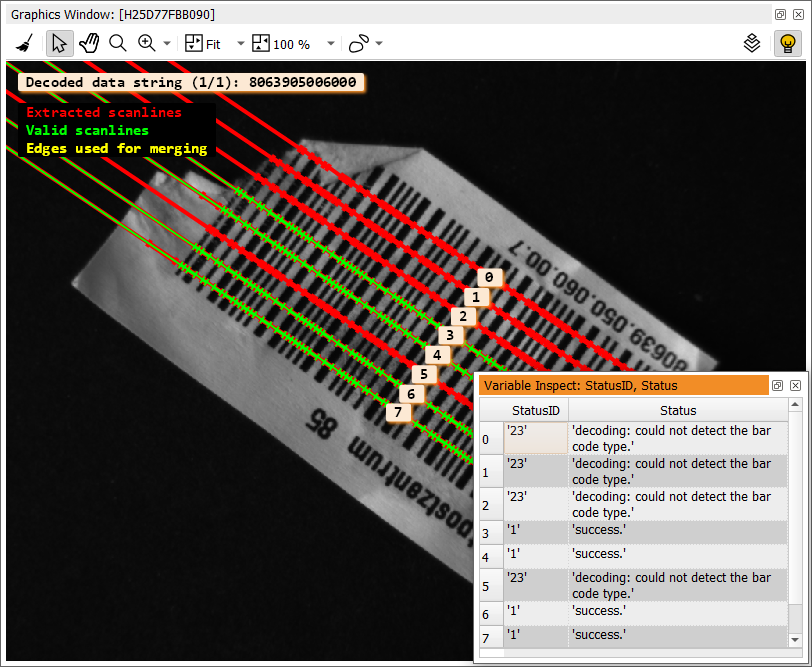
In order to control why scanlines are not successfully detected or why the code reading fails completely, diagnostic status messages in human readable format can be returned (see Figure 2).
With the operator get_bar_code_result set to 'status' or 'status_id' and supplying a candidate handle, diagnostic status messages for each possible scanline in the candidate region are returned in a tuple.
Use the operator get_bar_code_object with the parameter 'scanlines_all' to query the corresponding scanlines or 'scanlines_valid' to query all valid scanlines.
If you want to further process the scanline information, the '_plain'-variants of the parameters mentioned above, i.e., 'scanlines_all_plain' and 'scanlines_valid_plain' can be used.
They return the detected or valid scanlines as XLD contours.
Note that the status of the scanlines of a bar code can only be evaluated if the operator find_bar_code or the operator decode_bar_code_rectangle2 was called before while in 'persistence' mode.
The 'persistence' mode allows the storage of intermediate results during bar code decoding.
Also note that status information about the scanlines after the additional decoding step regarding small elements robustness (described above) needs to be retrieved using 'status_small_elements_robustness', while 'status' and 'status_id' still return messages concerning the decoding status without the additional approach.
Determining the status increases runtime and should therefore only be performed if the debugging information is needed.
The example %HALCONEXAMPLES%\hdevelop\Identification\Bar-Code\barcode_status.hdev demonstrates the use of the bar code parameters 'status' and 'status-id'.
What if the code reading fails?🔗
If the code reading fails, an error message is returned. See the following suggestions for the corresponding message:
Error messages
edges: not enough edges detected.edges: not enough edges for a start, a stop and at least one data character.edges: too many edges detected.
Possible solution
Inspect the region by querying region and scanlines with the operators
get_bar_code_object and get_bar_code_result.
Error messages
edges: center of scanline not within domain.
Possible solution
Change the ROI or use the operator full_domain to search the whole image.
If the position of the code is known, the operator
decode_bar_code_rectangle2 can be used to specify the exact position.
Error messages
decoding: could not find stop character.decoding: could not find start and stop characters.
Possible solution
Check the found bar code region or increase the number of scanlines with the
parameter 'num_scanlines' of the operator
set_bar_code_param(_specific).
Error messages
decoding: number of wide bars of a single character is not equal to 2.decoding: invalid encoding pattern.decoding: invalid mix of character sets.decoding: error decoding the reference to a human readable string.decoding: could not detect center guard pattern.decoding: could not detect left and/or right guard patterns.decoding: could not detect add-on guard pattern.decoding: could not detect enough finder patterns.decoding: no segment found.check: detected EAN-13 bar code type instead of specified type.
Possible Solution
Check if the right code type was specified as 'CodeType' for the operator
find_bar_code.
Error Message
check: checksum test failed.
Possible Solution
Check if the code even has a checksum.
If it does not, set the parameter 'check_char' of the operator
set_bar_code_param_specific to 'absent'.
Error Message
check: check of add-on symbol failed.
Possible Solution
Check if the code has an add-on symbol.
If it does not, change the 'CodeType' of find_bar_code to the
non-add-on variant.
Error Message
check: symbol region overlaps with another symbol region.
Possible Solution
The whole region is skipped because another symbol region that overlaps with this region has already been decoded. This is no error.
Set 'stop_after_result_num' of the operator set_bar_code_param
or set_bar_code_param_specific to the number of expected codes.
If regions are not found properly, you can either improve the image quality itself, which helps to solve many problems, or, if that is not possible, adjust the software to better detect your code.
If you know the location of your bar code, you can use the operator decode_bar_code_rectangle2 to specify the location instead of searching the whole image (see above).
Another reason why regions are not detected can be an element size that is not adjusted to the actual size of the bar code, which is especially a problem if the code is very big or very small.
You can solve the problem by adjusting the parameters 'element_size_min' or 'element_size_max'.
How to adapt these parameters and handle other typical cases is described in the example %HALCONEXAMPLES%\solution_guide\barcode_typical_cases.hdev.
This example presents some typical cases of problems that can occur while reading bar codes and presents some easy solutions.
The error messages that lead to a failure of code reading begin either with 'edges', 'decoding', or 'check'.
These categories represent the state within the decoding process in which the code reading failed.
First, edges of the bars, i.e., the white-to-black and black-to-white transitions from background to bar and bar to background, are detected.
Then, the code is decoded according to the specified symbology, and finally several tests (check) are performed to ensure a correct result.
The errors with the codes (0), (8), (9), and (13) ('unknown status', 'decoding: internal error when estimating the maximum string length', 'decoding: internal error when decoding a single character', and 'decoding: error decoding the reference to a human readable string') are internal errors that should not occur.
If they do occur, please contact your local HALCON sales partner.
Warning messages occur either with a success message or with an error message.
Warnings do not prevent a successful code reading but are merely an indication of possible future problems.