Image Source Plugin for USB3 Vision compliant cameras
The USB3 Vision Image Source Plugin provides access to all USB3 Vision compliant cameras. All versions of the USB3 Vision standard are supported. The plugin is available via the MVTec Software Manager (SOM) as an optional component of a HALCON installation.
| Plugin Name | mvtec_usb3vision |
|---|---|
| Version | |
| Date | 2025-04-16 |
| Available Architectures | x64-win64 x64-linux aarch64-linux armv7a-linux |
Features
- User-space implementation of the USB3 Vision protocol.
- Support of USB3 Vision specification version 1.2, covering all three basic protocols it defines: control, image/data streaming and asynchronous device events.
- Support of GenDC Container Transfer Mode. When supported by the device, this streaming mode is selected by default to provide maximum flexibility.
- Grabbing from multiple cameras.
- Software control of transport layer-dependent parameters.
- No administrator or root privileges required, except for the installation of the Windows device driver.
- Support of the pending acknowledge message, which allows automatic adjustment of timeout values, to properly handle slow, asynchronous device commands.
Limitations
- Devices that expose additional USB configurations, like the USB video device class, are only supported if the USB3 Vision configuration is active.
- Multi-stream devices are not supported.
- GenDC Serial and Parallel Flow modes currently not supported.
Installation
You can install the mvtec_usb3vision plugin via the SOM:
- For an already installed HALCON version choose the Manage packages functionality in the context menu.
- When installing a HALCON version from scratch, go to the Available products tab, and click install. You may need to choose the Advanced installation to select individual packages.
-
In both cases the Image Source Plugins can be found in the package group Image Acquisition Interfaces (1).
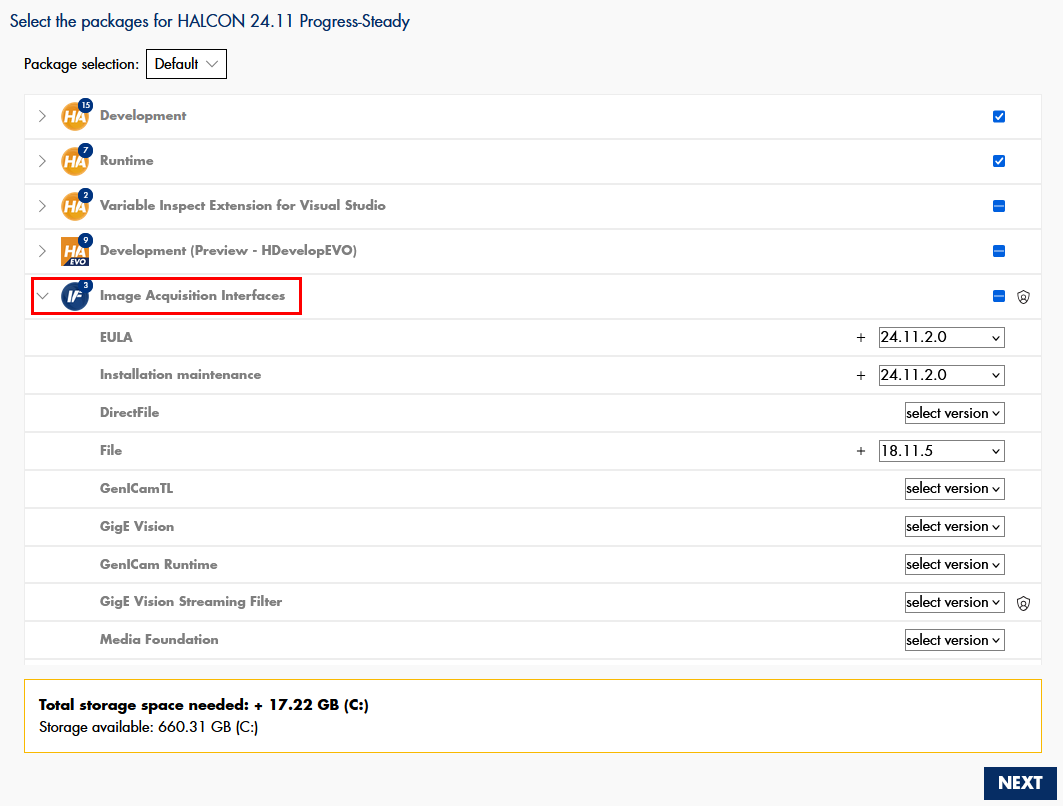
The SOM will place all necessary components at the correct location, such that the plugin is ready to use from within HALCON.
System requirements
- The
mvtec_usb3visionplugin is usable on all systems that fulfill the HALCON 24.11 system requirements. - The system must be equipped with a USB 3.0 interface. Make sure that the latest drivers for the USB 3.0 host controller are installed.
- Ensure full access to the connected USB3 Vision devices. Make sure one of the supported drivers (WinUSB, libusb-win32 or libusbK) is attached to the device's composite parent. Refer to the USB3 Vision device access section for details.
- The
mvtec_usb3visionplugin is usable on all systems that fulfill the HALCON 24.11 system requirements. - The system must be equipped with a USB 3.0 interface. Make sure that the latest drivers for the USB 3.0 host controller are installed.
- Ensure full access to the connected USB3 Vision devices. The application needs sufficient privileges to open the device file(s) in read-write mode.
- For device access libudev is required (libudev.so.1 or higher). Refer to the USB3 Vision device access section for details.
- To adapt priority and scheduling policies, administrator privileges or
CAP_SYS_NICEcapabilities are required. We suggest adding these capabilities to the videogroup(the default group when using the provided udev configuration) via an entry like@video - rtprio 99in a file such as/etc/security/limits.d/video.conf(which may need to be created).
Usage and concepts
The mvtec_usb3vision performs all access to the USB bus and connected USB devices through a libusb 1.0.x compatible interface.
USB3 Vision device access
To ensure full access to the device, the following preconditions have to be fulfilled:
- The device has to be compatible with USB 3.0 and operate in the SuperSpeed transfer mode.
- USB 2.0 (or lower) devices or devices connected through USB 2.0 hub will be discovered by the interface, but they will be marked as inaccessible.
- If an improper cable is used or the connector is not fully plugged in, the device may appear to be connected via USB 2.0.
- Device access can be established using one of the following drivers: WinUSB, libusb-win32, or libusbK. Currently, WinUSB is recommended as the default option.
- The driver must be attached to the device's composite parent, not just to one of the device interfaces.
- If the driver is not properly attached to the device, the device is still discovered but marked as inaccessible.
- Refer to the example
mvtec_usb3vision_install_usbdriver.hdevfor HDevelop code demonstrating how to install the required USB driver. Administrator rights are necessary for the installation process. -
If you are using other manufacturer's software to access the camera, it may be necessary to use a different driver than the one required by this plugin (1).
- To switch drivers, follow these steps:
- Open the Device Manager with administrative privileges.
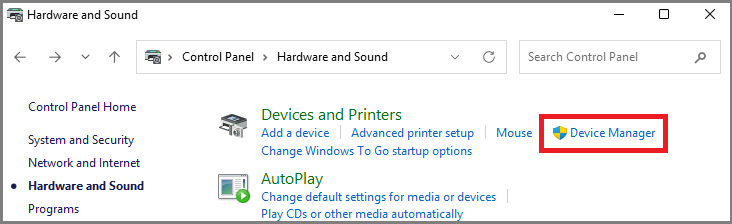
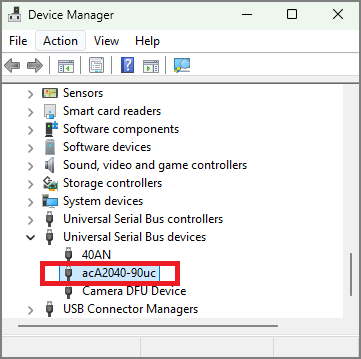
- Select the device and right-click on it.
- Choose Uninstall Device.
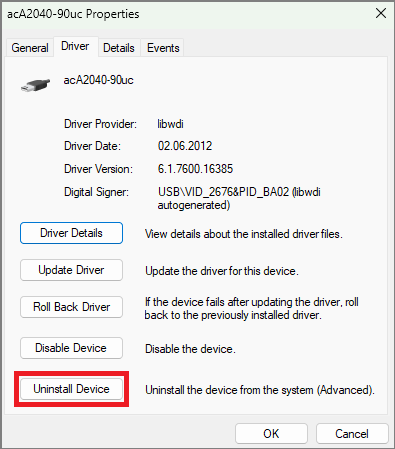
- Check the option to remove the driver (
 otherwise, the same driver may be automatically reinstalled when the device is reconnected).
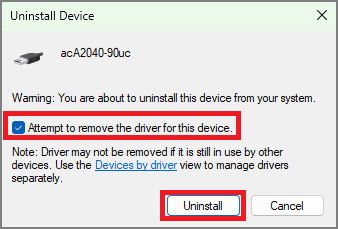
- Unplug the device, then reconnect it.
- The other driver should now be installed. If not, please follow the instructions provided by the other manufacturer's software.
- Open the Device Manager with administrative privileges.
- To switch drivers, follow these steps:
-
If the device is not detected at all, the driver must be assigned manually. Before doing so, update the driver for your USB 3.0 host controller to the latest available version from the manufacturer, as this often enables automatic detection.
-
The recommended way to install the driver manually is to use the Zadig driver installer, which can be downloaded from the official website (1).
- To install the driver manually, follow these steps:
- Run Zadig driver installer with administrator privileges.
- In Options menu:
List All Devices
Ignore Hubs or Composite Parents
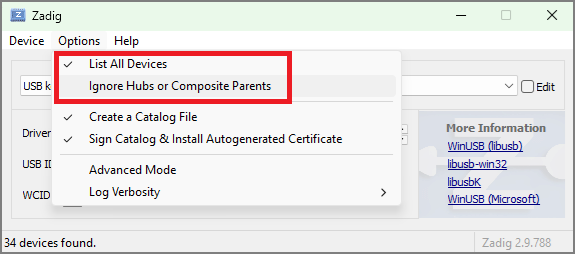
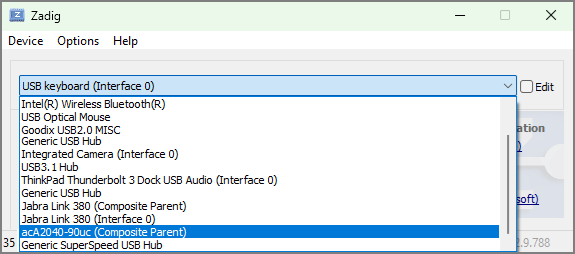
- Select your device ( its composite parent) in the drop-down list.
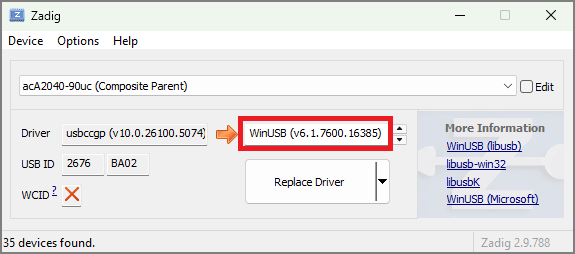
- Install the driver (e.g., WinUSB) to be used with the device.
- Run Zadig driver installer with administrator privileges.
- To install the driver manually, follow these steps:
- The device has to be compatible with USB 3.0 and operate in the SuperSpeed transfer mode.
- USB 2.0 (or lower) devices or devices connected through USB 2.0 hub will be discovered by the interface, but they will be marked as inaccessible.
- If an improper cable is used or the connector is not fully plugged in, the device may appear to be connected via USB 2.0.
- The enumeration and access to the devices is established through libudev (using usbfs as a fallback). At least libudev.so.1 is required.
- The application requires sufficient privileges to open the device file in read-write mode. Without read-write access, the device may not be properly enumerated, as essential USB3 Vision-related information cannot be queried.
- To enable full access to USB3 Vision devices from a regular user account, the system's udev subsystem should be
configured to ensure read-write permissions for the corresponding device files. While the exact udev configuration may
vary depending on the system, a default setup suitable for most environments is included with the
mvtec_usb3visionplugin. - The recommended udev configuration rule is automatically installed by SOM in
$HALCONROOT/misc/linux/udev/rules.d/59-usb3vision.rules. This rule grants read-write access to USB3 Vision device files for users in the video group, as well as for users logged in interactively. If this configuration meets your requirements, copy the file to the/etc/udev/rules.ddirectory (valid for most Linux distributions). If necessary, you can modify the rule to match your system's specific udev configuration strategy. - The Linux kernel sets a default limit of 16 MB for USB transfer buffers. For high-bandwidth scenarios, such as
cameras with large sensors, multiple simultaneous devices, or extensive scheduled transfers
(see Streaming engine),
this limit may be insufficient and should be increased to avoid image acquisition failures. To avoid issues, make sure the
buffer size is large enough to handle the total streaming needs of all active cameras, plus any other devices or applications
using the USB system. This limit is controlled by the
usbcore.usbfs_memory_mbkernel parameter, which specifies the buffer size in megabytes. For example, to increase the limit to 512 MB, you can either:- Add
usbcore.usbfs_memory_mb=512to your kernel command line when booting or bootloader configuration. - Adjust it at runtime (requires administrator privileges) with the following command:
echo 512 > /sys/module/usbcore/parameters/usbfs_memory_mb
- Add
Identifying/Connecting devices
The mvtec_usb3vision plugin models a global USB 3.0 interface as a GenTL interface module.
HALCON image sources provide shortcuts to discover all reachable devices with just one operator call.
If you need to manually query information about the interface, read here.
Device identifiers
The mvtec_usb3vision plugin provides several ways to identify USB3 Vision devices.
These are:
- The unique ID of the device, as seen by the plugin
- The serial number of the device, which should not change
- The GenICam
DeviceUserID, a (changeable) string assigned to the device by the user
These three ways of identifying the device are directly integrated into the HALCON image source handles.
If needed, a device discovery will be triggered in the background when calling connect_image_source.
Warning
- Only one identifier should be specified at a time.
- If the used identifier is not unique,
connect_image_sourcewill throw an error.
HDevelop: Using the unique ID to specify your USB3 Vision camera
HDevelop: Using the serial number to specify your USB3 Vision camera
HDevelop: Using the user defined name to specify your USB3 Vision camera
Device discovery
By using the HALCON operator query_image_sources, the USB3 Vision device discovery is automatically triggered.
For each discovered device, an image source handle in unconnected state is returned.
These handles can be used for connecting directly, but they can also be used to extract the device identifiers mentioned in the previous section
(device_id, device_serial_number, and device_user_name) for later use.
HDevelop: Discover devices globally and connect to one of them
Interface
By default, the HALCON operator connect_image_source automatically
searches and connects the interface module.
However, opening a connection to the interface module without connecting to a device, can be desirable for the following reasons:
- To query information about the interface, even when no camera is reachable
- To execute a device discovery on the interface in order to gather information about available devices before connection
HDevelop: Discover devices on the global USB3 Vision interface and connect to one of them
 The
The interface_id is always Usan_ITF_glob (global USB 3.0).
create_image_source ('mvtec_usb3vision', 'none', ['interface_id'], ['Usan_ITF_glob'], InterfaceHandle)
connect_image_source (InterfaceHandle, [], [])

query_image_sources ('ignore', ['interface_handle'], [InterfaceHandle], DetectedCameras)
FirstCam := DetectedCameras[0]
connect_image_source (FirstCam, [], [])
Advanced control
The streaming and event engines operate reliably under normal operating conditions. However, in more specialized scenarios, performance optimization may require careful fine-tuning.
While the tuning principles for both engines are similar, it's important to consider them together, as they share system resources, including CPU cycles and access to the USB subsystem. Coordinated configuration helps prevent resource conflicts and ensures stable, balanced operation.
Warning
The following sections describe advanced configuration options. These settings should be modified with caution, incorrect adjustments may lead to significant performance issues.
Streaming engine
This section outlines key considerations and advanced configuration techniques for fine-tuning the streaming engine to meet specialized performance requirements.
-
Frame rate and acquisition mode: If the camera's frame rate exceeds the rate at which the application can process images, adjustments are necessary. Ideally, this situation should be avoided by configuring the camera appropriately, such as using triggered acquisition instead of free-running mode.
-
Buffer management: For optimal performance when streaming over USB, it is usually necessary to ensure that a buffer is always available to receive data and that this buffer is properly scheduled for USB transfers to the system's USB subsystem. Otherwise, the camera may discard the image, deliver only part of it (especially if it has no or limited frame buffering) or even begin to misbehave.
-
Auxiliary buffers: The consumer typically allocates a set of buffers used to deliver the acquired data to the user application ("user buffers"). If the application cannot keep up with the camera's frame rate, all user buffers may become occupied and remain queued for processing, leaving no buffer available for scheduling the next acquisition. To mitigate this, the streaming engine allocates a number of auxiliary buffers, defined by the parameter
StreamAuxiliaryBufferCount(default: 2) of the stream module. These auxiliary buffers temporarily absorb overflow when user buffers are saturated.Tuning
StreamAuxiliaryBufferCount- You may reduce the auxiliary buffer count (down to zero) to conserve memory.
- Alternatively, you can increase the count if the default is insufficient to prevent buffer overflows. However, in such cases, it may be more effective to allocate additional user buffers instead.
Warning
Using auxiliary buffers introduces additional overhead due to the extra copy operation.
-
Scheduled buffer target: The
StreamScheduledBuffersTargetparameter (default: 2) of the stream module defines the minimum number of buffers the engine tries to keep scheduled. If user buffers are insufficient, auxiliary buffers are used to meet this target.Tuning
StreamScheduledBuffersTargetWith high-speed cameras, buffers may be exhausted quickly, especially if the streaming thread is delayed. In such cases, increasing this value can help prevent data loss.
-
Buffer handling mode: When an image is acquired into an auxiliary buffer, the streaming engine checks whether a user buffer has become available in the meantime. If not, the engine checks the
StreamBufferHandlingModeparameter of the stream module) to determine whether it is permitted to overwrite older buffers awaiting processing in the output queue. If a user buffer is available, the image data is copied into it, otherwise the image is discarded. -
Maximum scheduled buffers: the parameter
StreamScheduledBuffersMaximumof the stream module defines the maximum number of buffers the engine will attempt to schedule at once. The default value is 4, which has proven effective in most scenarios (1).- This parameter was originally introduced to address a limitation in the libusb library on Windows, which could not handle more than 64 concurrent USB transfers. This constraint posed challenges in multi-camera setups. Although this limitation has since been resolved, the default value of 4 has been retained to ensure backward compatibility and reliable performance.
Tuning
StreamScheduledBuffersMaximumConsider increasing this value only when working with cameras that stream small images at very high frame rates. However, setting this value higher than the actual number of acquisition buffers is generally not meaningful.
-
Buffer scheduling: The timely scheduling of buffers plays a critical role in the overall performance of the streaming engine. One of the key factors influencing this is the priority of the streaming engine thread in relation to other system threads.
Tuning stream thread behavior
To fine-tune thread behavior, refer to the following parameters in the documentation of the stream parameters:
StreamThreadPriorityStreamThreadSchedulingPolicyStreamThreadApplyPriority
-
Event engine
The event engine handles GenICam events, which are asynchronous notifications sent from the device to the host application. These events notify the host of actions such as frame capture, GPIO state changes, or error conditions, and play a key role in synchronizing hardware and software actions in machine vision systems.
This section explains how to adjust and improve the event engine for use cases that go beyond standard operation. It covers key points to consider and provides advanced settings that can help enhance performance when needed.
-
Buffer scheduling for events: Unlike the streaming engine, the event engine uses all buffers internally. It attempts to schedule as many transfers for incoming events as possible, but never more than the value specified by
DeviceScheduledEventsMaximumof the local device module. The parameter is read-only and is known to perform well under all typical conditions.Tuning stream thread behavior
To fine-tune thread behavior, refer to the following parameters in the documentation of the local device parameters:
DeviceEventsThreadPriorityDeviceEventsThreadSchedulingPolicyDeviceEventsThreadApplyPriority
Configuration parameters
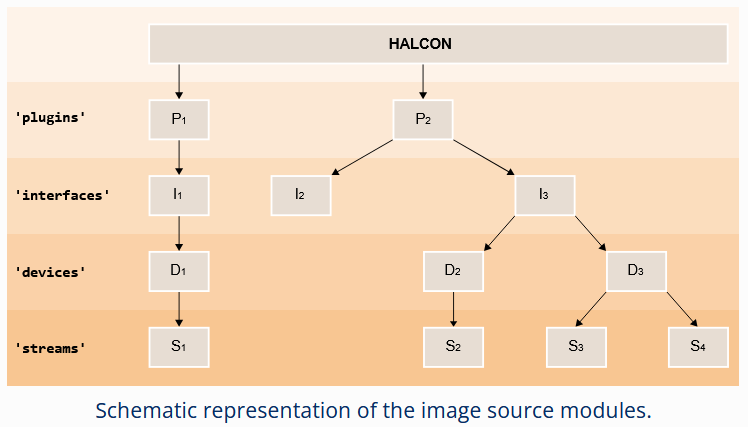
The mvtec_usb3vision plugin implements the GenICam GenTL standard, which specifies a set of five configurable modules.
These are the plugin (in GenTL referred to as System), interface, local_device, device, and stream modules (1).
Refer to the HALCON Operator Reference for more information about these modules.
In the following section all configuration parameters of the different modules are listed.
Plugin
Only one instance of the plugin module exists per plugin.
This module serves mostly informational purposes.
Its parameters can be grouped broadly in two different categories:
-
Generic information about the plugin itself (such as
TLType,TLModelName, andTLVendorName). -
Generic information about the available interfaces on the given system (e.g.
InterfaceID)
HDevelop: How to access parameters for the plugin module
| Parameter | Description type read-only values default |
|---|---|
GenTLSFNCVersionMajor |
Major version number of the GenTL Standard Features Naming Convention used to create this GenTL Producer's XML.integer read-only |
GenTLSFNCVersionMinor |
Minor version number of the GenTL Standard Features Naming Convention used to create this GenTL Producer's XML.integer read-only |
GenTLVersionMajor |
Major version number of the GenTL specification this GenTL Producer complies with.integer read-only |
GenTLVersionMinor |
Minor version number of the GenTL specification this GenTL Producer complies with.integer read-only |
InterfaceID |
GenTL Producer wide unique identifier of the selected interface. This interface list only changes on execution of InterfaceUpdateList.string read-only |
InterfaceSelector |
Selector for the different GenTL Producer interfaces. This interface list only changes on execution of InterfaceUpdateList.integer 0 |
InterfaceUpdateList |
Updates the internal interface list.command |
InterfaceUpdateTimeout |
Specifies timeout for the InterfaceUpdateList Command.integer 0 ms |
TLFileName |
File name including extension of the library.string read-only |
TLID |
Unique identifier of this GenTL Producer.string read-only |
TLModelName |
Name of this GenTL Producer to distinguish different kinds of GenTL Producer implementations from one vendor.string read-only |
TLPath |
Full path to this GenTL Producer including name and extension.string read-only |
TLType |
Transport layer type of this GenTL Producer.USB3Vision: USB3 Visionenumeration read-only USB3Vision |
TLVendorName |
Name of the GenTL Producer vendor.string read-only |
TLVersion |
Vendor specific version string.string read-only |
Interface
The mvtec_usb3vision plugin models the global USB 3.0 interface as interface module.
The parameters of the interface module can be grouped broadly in two different categories:
-
Generic information about the interface itself (such as
InterfaceIDandInterfaceTLVersionMajor). -
Generic information about the discovered devices on the interface (such as
DeviceModelName,DeviceSerialNumber, andDeviceVendorName).The discovery of these devices can be triggered via the command
DeviceUpdateList. All the parameters mentioned in this second group are selected by theDeviceSelector. To discover information about all reachable devices, increment the value of theDeviceSelectorone-by-one and query the corresponding device parameters in each iteration.
HDevelop: How to access parameters for the interface module
| Parameter | Description type read-only values default |
|---|---|
DeviceAccessStatus |
Access status of the selected device at the moment of the last execution of DeviceUpdateList.This value only changes on execution of DeviceUpdateList.Unknown: Unknown statusReadWrite: Full accessReadOnly: Read-only accessNoAccess: The device is seen but unreachableBusy: The device is open by another entityOpenReadWrite: The device is open by this GenTL Producer with RW accessOpenReadOnly: The device is open by this GenTL Producer with RO accessenumeration read-only Unknown, ReadWrite, ReadOnly, NoAccess, Busy, OpenReadWrite, OpenReadOnly |
DeviceCompatibleDriverInstalled |
Reports whether a compatible driver is installed for the selected device. If not, use the DeviceInstallCompatibleDriver command to install the driver and get full access to the device.boolean read-only |
DeviceID |
Interface wide unique identifier of the selected device. This value only changes on execution of DeviceUpdateList.string read-only |
DeviceInstallCompatibleDriver |
Attempts to install compatible driver for the selected device (requires/prompts elevated privileges). Required only if not already installed (inaccessible/misconfigured device). command |
DeviceModelName |
Name of the device model of the selected device. This value only changes on execution of DeviceUpdateList.string read-only |
DeviceSelector |
Selector for the different devices on this interface. This value only changes on execution of DeviceUpdateList.integer 0 |
DeviceSerialNumber |
Serial number of the selected device. This value only changes on execution of DeviceUpdateList.string read-only |
DeviceTLVersionMajor |
Major version number of the transport layer specification of the selected device.integer read-only |
DeviceTLVersionMinor |
Minor version number of the transport layer specification of the selected device.integer read-only |
DeviceUpdateList |
Updates the internal device list.command |
DeviceUpdateTimeout |
Specifies timeout for the DeviceUpdateList Command.integer 0 ms |
DeviceUserID |
User-programmable device identifier of the selected device. This value only changes on execution of DeviceUpdateList.string read-only |
DeviceVendorName |
Name of the device vendor of the selected device. This value only changes on execution of DeviceUpdateList.string read-only |
InterfaceID |
GenTL Producer wide unique identifier of the selected interface.string read-only |
InterfaceTLVersionMajor |
Major version number of the transport layer specification this GenTL Producer interface complies with. The TL version of the Interface can be compared with the TL version of the device to assure compatibility. integer read-only |
InterfaceTLVersionMinor |
Minor version number of the transport layer specification this GenTL Producer interface complies with. The TL version of the Interface can be compared with the TL version of the device to assure compatibility. integer read-only |
InterfaceType |
Transport layer type of the interface.USB3Vision: USB3 Visionenumeration read-only USB3Vision |
Local Device
As mandated by the GenTL standard, for each detected physical USB3 Vision device, the mvtec_usb3vision
plugin also instantiates a so called 'local device' module. This provides information and configuration parameters
for the device as it is seen by the USB3 Vision receiver implementation. The list of available parameters
therefore is independent of the actual device.
This is contrary to the device module. Its parameters are fully defined by the connected device and its on-board GenICam feature description file.
The parameters of the local device module can be grouped broadly in two different categories:
-
Information about the real device as seen by the
mvtec_usb3visionplugin (such asDeviceAccessStatusandDeviceModelName). -
Information about the discovered streams on this device (
StreamSelectorandStreamID). However, as most USB3 Vision cameras only provide one stream, themvtec_usb3visionplugin only supports streaming images from the first stream.
HDevelop: How to access parameters for the local_device module
| Parameter | Description type read-only values default |
|---|---|
DeviceAccessStatus |
Gets the access status the GenTL Producer has on the device.Unknown: Unknown statusOpenReadWrite: The device is open by this GenTL Producer with RW accessOpenReadOnly: The device is open by this GenTL Producer with RO accessenumeration read-only Unknown, OpenReadWrite, OpenReadOnly |
DeviceEventsThreadApplyPriority |
Applies desired thread priority parameter(s) to the internal event handling thread. Also triggers a re-read of the actual values. The values must be configured with the DeviceEventsThreadPriority and DeviceEventsThreadSchedulingPolicy parameters beforehand. Executing this command and changing the thread priority parameter(s) might require administrative privileges.Only available if the device supports device events. Use with care. command |
DeviceEventsThreadPriority |
OS-specific thread priority value used for the internal event handling thread. The value can be applied with the DeviceEventsThreadApplyPriority command. Afterwards the value in effect can be read back. The value must fall within the range of values expected by the operating system, i.e. as expected in the struct sched_param under Linux or in the call to SetThreadPriority under Windows. Even per default the implementation tries to apply a higher-than-normal priority to this thread.Only available if the device supports device events. Use with care. integer |
DeviceEventsThreadSchedulingPolicy |
OS-specific scheduling policy value used for the internal event handling thread. The value can be applied with the DeviceEventsThreadApplyPriority command. Afterwards the value in effect can be read back. The value must be one of the values of the priority identifiers of the operating system, e.g. SCHED_FIFO, SCHED_RR and so on.Only available on Linux systems. Only available if the device supports device events. Use with care. integer |
DeviceID |
Interface-wide unique identifier of this device.string read-only |
DeviceManufacturerInfo |
Manufacturer information about the remote device.string read-only |
DeviceModelName |
Name of the remote device model.string read-only |
DeviceScheduledEventsMaximum |
Maximal number of event buffers that will be scheduled together by the event handling engine for incoming USB transfers. Not writable while event thread is active. Only available if the device supports device events. Use with care. integer read-only 2 |
DeviceSerialNumber |
Serial number of the remote device.string read-only |
DeviceType |
Transport layer type of the device.USB3Vision: USB3 Visionenumeration read-only USB3Vision |
DeviceUserID |
User-programmable device identifier of the remote device.string read-only |
DeviceVendorName |
Name of the remote device vendor.string read-only |
DeviceVersion |
Name of the version of the remote device model.string read-only |
StreamID |
Device unique ID for the stream. For example a GUID. string read-only |
StreamSelector |
Selector for the different stream channels.integer 0 |
Device
When using the mvtec_usb3vision plugin, the parameters available in the device module are fully defined by the connected device.
This is possible because the USB3 Vision standard mandates that each USB3 Vision device (e.g. camera, lighting controller, etc) must contain a GenICam compatible feature description file. This file is automatically downloaded by the plugin and interpreted by the connecting application (i.e. HALCON).
To get more information about these device parameters, there are three possibilities:
-
Refer to the appropriate documentation provided by the manufacturer of your device.
-
Common device parameters like
ExposureTime,AcquisitionMode,Width,Height, etc. are standardized across manufacturers of USB3 Vision devices. Explanations regarding these parameters can be found in the GenICam document "GenICam Standard Features Naming Convention (SFNC)". It is available on the GenICam download page. -
The GenICam feature description file can also contain description texts for the parameters. You can query these descriptions of the parameters directly at runtime. Example:
get_image_source_param (ImageSourceHandle, <ParamName>, ['property'], ['description'], ParamDescription)
HDevelop: How to access parameters for the device module
The parameters of the device module are selected per default.
Therefore specifying the generic parameter group==device can be omitted.
Stream
The mvtec_usb3vision plugin automatically instantiates one stream module per connected device.
The purpose of the stream module is to configure parameters related to the transmission and receiving of image data.
For fine-tuning of the streaming engine, refer to the Advanced control - Streaming engine.
HDevelop: How to access parameters for the stream module
| Parameter | Description type read-only values default |
|---|---|
PayloadSize |
Size of the expected data in bytes. Note that this feature "overwrites" the PayloadSize of the remote device, see corresponding sections of the GenICam GenTL standard.integer read-only |
StreamAnnounceBufferMinimum |
Minimal number of buffers to announce to enable selected buffer handling mode.integer read-only 0 |
StreamAnnouncedBufferCount |
Number of announced (known) buffers on this stream. This value is volatile. It may change if additional buffers are announced and/or buffers are revoked by the GenTL Consumer. integer read-only |
StreamAuxiliaryBufferCount |
Number of auxiliary buffers the acquisition engine will allocate to keep the stream going when not enough user buffers are available.integer |
StreamBufferHandlingMode |
Selects the buffer handling mode in use for this Data Stream. This influences how the streaming engine handles new complete transmissions, especially when they arrive faster than the application is processing them. Not writeable while streaming is active. OldestFirst: The acquired buffers are delivered to the application in a FIFO manner. New data will be discarded if no free buffers are available. Typically used when each image must be processed, even when short load-spikes slow down processing momentarily.OldestFirstOverwrite: The acquired buffers are delivered to the application in a FIFO manner. New data will overwrite the oldest buffer if no free buffers are available. Typically used when each image must be processed, even when short load-spikes slow down processing momentarily.NewestOnly: The application always receives the newest acquired buffer. New data will replace any other one already received and not yet given to the application. Typically used for displaying or when having the latest results is more important than having all results.enumeration OldestFirst, OldestFirstOverwrite, NewestOnly OldestFirst |
StreamID |
Device unique ID for the data stream. For example a GUID. string read-only |
StreamScheduledBuffersMaximum |
Maximal number of buffers that will be scheduled together by the streaming engine for incoming USB transfers. Buffers typically use 3-4 USB transfers. Not writeable while streaming is active. Use with care. integer 4 |
StreamScheduledBuffersTarget |
Target count of buffers that the streaming engine should try to keep scheduled for incoming transfers. When there is not enough user buffers to be scheduled, the streaming engine will try to reach this level using auxiliary buffers. The number of scheduled buffers cannot exceed StreamScheduledBuffersMaximum.Not writeable while streaming is active. Use with care. integer 2 |
StreamThreadApplyPriority |
Applies desired thread priority parameter(s) to the internal stream processing thread. Also triggers a re-read of the actual values. The values must be configured with the StreamThreadPriority and StreamThreadSchedulingPolicy parameters beforehand. Executing this command and changing the thread priority parameter(s) might require administrative privileges.Use with care. command |
StreamThreadPriority |
OS-specific thread priority value used for the internal stream processing thread. The value can be applied with the StreamThreadApplyPriority command. Afterwards the value in effect can be read back. The value must fall within the range of values expected by the operating system, i.e. as expected in the struct sched_param under Linux or in the call to SetThreadPriority under Windows. Even per default the implementation tries to apply a higher-than-normal priority to this thread.Use with care. integer |
StreamThreadSchedulingPolicy |
OS-specific scheduling policy value used for the internal stream processing thread. The value can be applied with the StreamThreadApplyPriority command. Afterwards the value in effect can be read back. The value must be one of the values of the priority identifiers of the operating system, e.g. SCHED_FIFO, SCHED_RR and so on.Only available on Linux systems. Use with care. integer |
StreamType |
Transport layer type of the Data Stream.USB3Vision: USB3 Visionenumeration read-only USB3Vision |
Examples
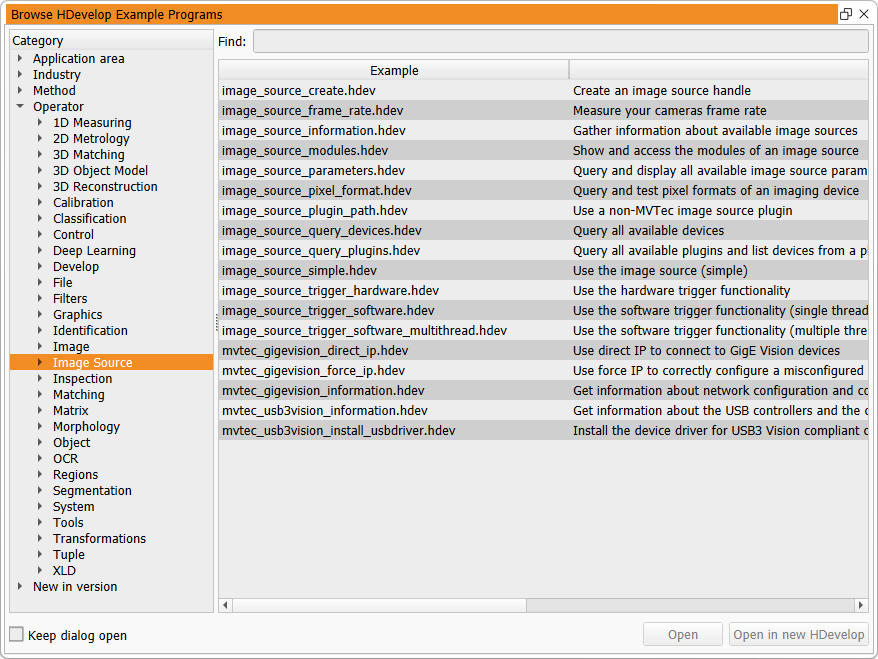
Bundled with the mvtec_usb3vision plugin are example scripts in the HDevelop programming language, that highlight important concepts when using the plugin.
These examples can be opened in HDevelop with the HDevelop Example Browser (1):
-
mvtec_usb3vision_install_usbdriver.hdev
This example automatically finds devices missing the required USB driver and installs it programmatically (Windows only). The installation only needs to be performed once, as Windows remembers the driver for each device vendor and ID combination. -
mvtec_usb3vision_information.hdev
Get information about the USB controllers and the connected USB3 Vision compliant cameras.
This script is intended for troubleshooting purposes. Its output should be sent to MVTec for further analysis of the system setup.
Troubleshooting
In case of image acquisition problems with the mvtec_usb3vision plugin, the following hints might help to solve them.
- Check if the latest revision of the
mvtec_usb3visionplugin is used. - Check the System Requirements.
- Check if the device has the latest firmware.
- Check the extended error messages for detailed error descriptions. These are automatically displayed in HDevelop, but might need to be queried explicitly when programming in HALCON/C++ or HALCON/C# for example.
-
If the plugin cannot be loaded (1), it might not be properly installed.
Check if it is installed via the SOM (see installation).
Verify manually that the file 'mvtec_usb3vision.cti' is present in the folder%HALCONROOT%\bin\%HALCONARCH%() or$HALCONROOT/lib/$HALCONARCH().- Error
"Image source module not found (HALCON error code: 5809)"
or extended error message containing
"Cannot identify producer to open"
while usingquery_image_sourceorconnect_image_source.
- Error
-
Try using a different USB 3.0 cable and verify that it is connected to a compatible USB 3.0 port.
-
In case of performance issues, refer to the advanced control section:
- Streaming delays or dropped frames: See the
streaming engine buffer management section.
Check
StreamScheduledBuffersTargetandStreamAuxiliaryBufferCountparameters. - USB transfer bottlenecks or image loss: Review the streaming engine buffer management section. Ensure buffers are properly scheduled and avoid running out of "user buffers" during acquisition.
- Unstable frame rate or acquisition timing: Match the camera frame rate to application processing capacity, and use triggered acquisition instead of free-running mode whenever possible.
- Unexpected data or data corruption: Inspect the
buffer handling mode section.
Verify
StreamBufferHandlingModesettings, and review thread priority configuration in buffer scheduling. - Event processing delays or missed triggers: Refer to
event engine buffer scheduling section.
Check
DeviceScheduledEventsMaximumvalue, and adjust thread priority settings in the event engine section. - Multi-camera setups: Consider increasing
StreamScheduledBuffersMaximumfor high-speed, low-payload configurations. - Thread priority conflicts affecting data flow: Fine-tune thread scheduling using the parameters listed in streaming thread configuration and event thread configuration.
- Streaming delays or dropped frames: See the
streaming engine buffer management section.
Check
Requesting help
If you experience problems not solvable with the tips of the previous section, MVTec and its worldwide partner network are ready to help. Please refer to www.mvtec.com/support for directions.
Include the following in your support request for maximum efficiency
- Used HALCON and image source plugin version.
- Used HALCON architecture (e.g. x64-win64, x64-linux, aarch64-linux or armv7a-linux).
- Camera manufacturer, model and firmware version.
- Details about the host machine, like operating system, RAM and CPU.
- Description of the observed and expected behavior.
- Minimal sample code (if possible HDevelop script) to reproduce the issue.
- If applicable, any error codes and error messages observed.
- Complete output of the HDevelop example
mvtec_usb3vision_information.hdev.
FOSS libraries
The mvtec_usb3vision plugin depends on free and open-source software (FOSS) libraries.
See the file third_party_mvtec_usb3vision.txt in the HALCON base directory for copyright and license information.
Libraries are used without modifications unless explicitly stated in the file.
You can request the source for those third-party libraries licensed under LGPL via email to info@mvtec.com with the subject "Request source code of third-party libraries".
Release notes
- Version 1.0.0 (2025-04-16)
- First official version of the MVTec USB3 Vision implementation as a standalone GenTL compatible plugin.