GUI Overview🔗
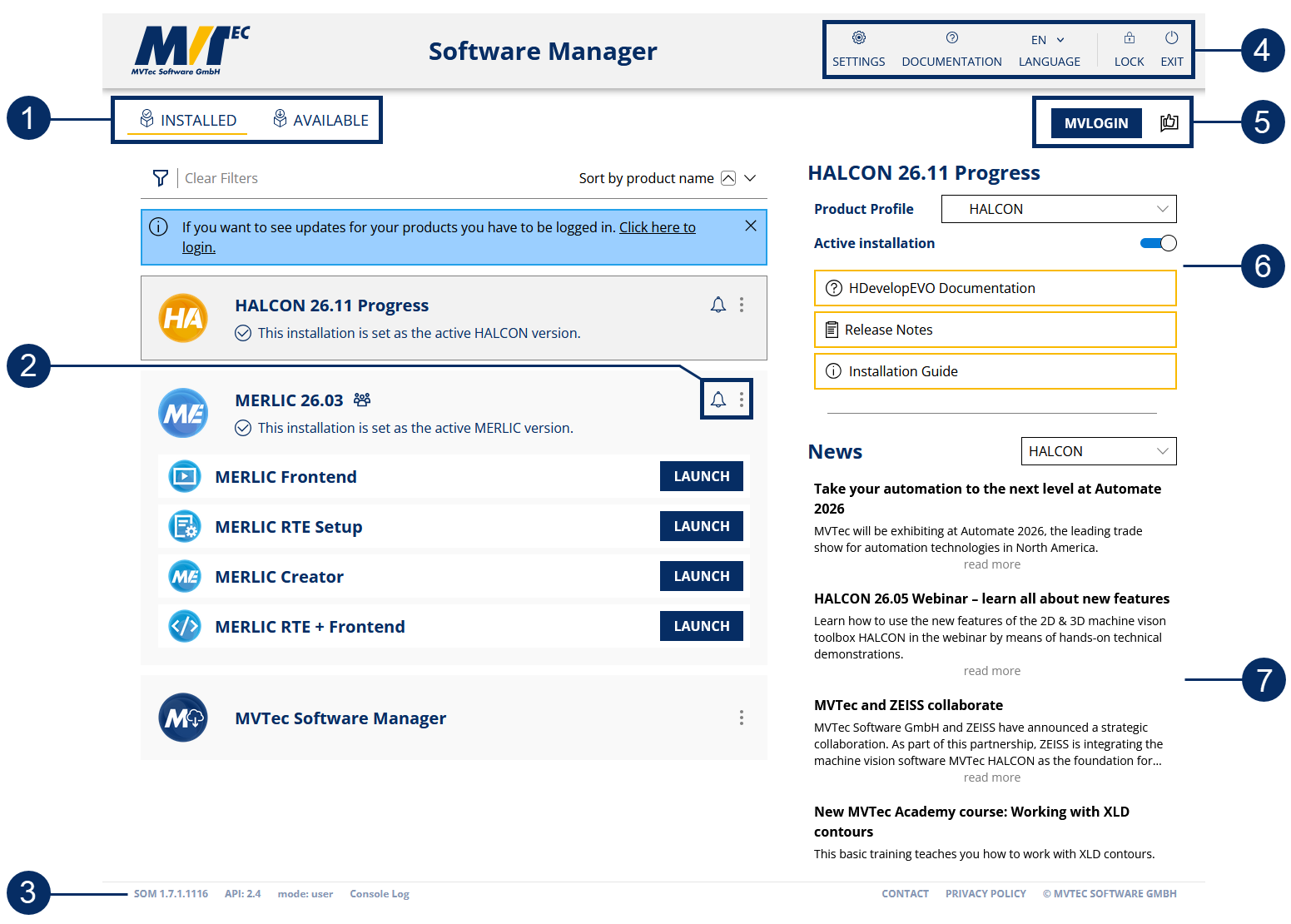
The Tab Selector provides quick access to different parts of the SOM interface, such as the Installed and Available pages.
- Installed Tab: This page lists installed products, including those installed with the Software Manager and those installed with other MVTec installers. Depending on the installation, additional buttons to launch applications may appear for each product.
- Available Tab: This page lists available products from the configured product catalog. It is the start page when no products have been installed
The
icon opens the Installation directory, Manage packages, or Uninstall options for the selected software.
For more information, see Managing packages in the Software Manager
If the
icon is visible, an update is available.
For more information, see How to update Software with the MVtec Software Manager
Footer showing the version of the Software Manager.
The top toolbar includes the following icon and functions:
- Opens the settings menu.
- Opens the Sofware Manager Documentation
- Language The Software Manager is available in these following languages:
- English
- German
- Japanese
- Chinese
- Locks the Software Manager.
- This button shuts down the Software Manager web server. Any installations in progress will be aborted. If you close only the browser window, the Software Manager keeps running in the background and you can reopen the session by double clicking MVTec Software Manager.
You can sign in using the MVLOGIN button. Use the thumbs‑up button to send us feedback.
The profile picture shows additional information for the selected installation. It displays the active profile, a toggle to activate the installation (Windows only), and buttons to open installation‑specific resources such as documentation or release notes. Product profiles customize the environment for an installation. Use the profile dropdown to switch profiles or choose Edit profile to manage them. Profiles set environment variables and file‑association overrides. Product variables (for example HALCONROOT) are defined by the product and cannot be changed, but they can be disabled per profile. Add profile variables using the button.
MVTec Newsfeed
GUI Settings🔗
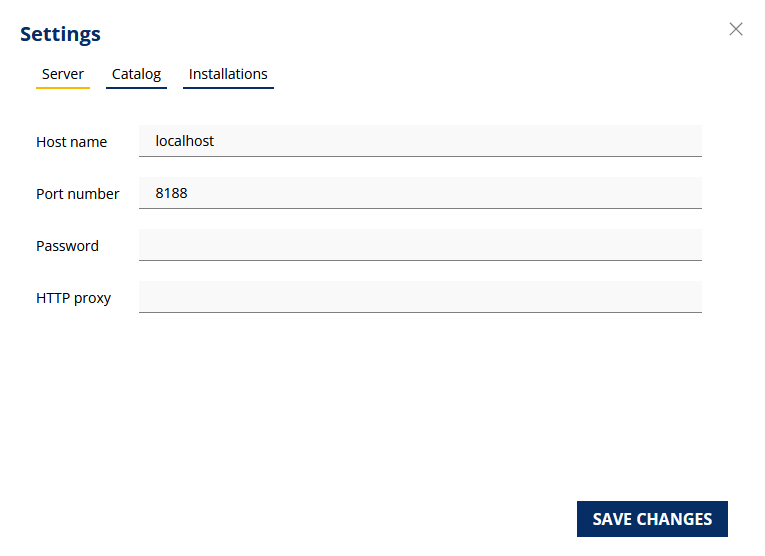
The settings page stores options persistently.
To apply changes, press Enter in a text field or click Save changes.
Some options require restarting the Software Manager to take effect.
The Settings page is devided into three tabs Server, Catalog and Installation.
Server🔗
-
Host name: Specifies the host name SOM listens on for incoming connections. The default value localhost accepts only local connections. Set this to the computer name to accept connections from other devices on your network. Using the computer name makes SOM listen on all IP addresses (equivalent to 0.0.0.0); this may expose the computer if it is publicly reachable. To allow only internal access, specify a private IP address. Default: localhost
-
Port number: Specifies the port SOM listens on. Enter 0 to let SOM select a free port automatically. Default: 8188
-
HTTP proxy: Specifies the address of an HTTP proxy. Leave empty for a direct internet connection. For more information, see Connecting through an HTTP proxy.
Catalog🔗
Specifies where the product catalog is downloaded from. If you are in China (PRC), change this to a cache proxy to speed up downloads. Otherwise keep the default. In this tab, it is also possible to delete the local repositories.
Default: Global
Installations🔗
Path entries specify file locations used by the Software Manager. Paths may include environment variables, which must be prefixed with $. On Windows for example, use $PROGRAMFILES instead of %PROGRAMFILES%.
There are two location types for program and data files: per-user (current user only) and system-wide (available to all users).
Click the folder button to open the directory in your file manager.
Important
Do not change installation targets after products have been installed.