Optimization🔗
Restricting the search to a ROI🔗
The obvious way to restrict the search space and thus speed up the matching is to apply the operator find_ncc_model not to the whole image but only to an ROI.
The corresponding procedure is explained in more detail for shape-based matching.
For correlation-based matching you simply have to use find_ncc_model.
Restricting the range of orientation🔗
Affected parameters
AngleExtent, AngleStart
When creating the model you already specified the allowed range of orientation.
When calling the operator find_ncc_model you can further limit the range with the parameters AngleStart and AngleExtent.
This is useful if you can restrict these ranges by other information, which can, for example, be obtained by suitable image processing operations.
Another reason for using a larger range when creating the model may be that you want to reuse the model for other matching tasks.
Specifying the similarity of the object🔗
Affected parameter
MinScore
The parameter MinScore specifies the minimum score a potential match must have to be returned as match.
The score is a value for the quality of a match, that is, for the correspondence, or “similarity”, between the model and the search image.
For correlation-based matching the score is obtained using the normalized cross correlation between the pattern and the image (for the formula, see the description of find_ncc_model).
To speed up the search, the value of MinScore should be chosen as large as possible, but of course still as small as necessary for the success of the search.
Searching for multiple instances of the object🔗
Affected parameters
MaxOverlap, NumMatches
To find multiple instances of a model in the search image, the maximum number of returned matches is selected via the parameter NumMatches.
Additionally, the parameter MaxOverlap specifies to which degree the instances may overlap.
The functional principle of these parameters is similar to the parameters that are used for shape-based matching.
There, tips for the parameter selection are given that are valid also for correlation-based matching.
Note that if multiple instances of the object are searched and found, the parameters Row, Column, Angle, and Score contain tuples.
Searching for multiple models simultaneously🔗
Affected parameter
ModelIDs
If you are searching for instances of multiple models in a single image, you can of course call the operator find_ncc_model multiple times.
But a faster alternative is to use the operator find_ncc_models.
This operator expects similar parameters, with the following differences:
- With the parameter
ModelIDsyou can specify a tuple of model IDs instead of a single one. As when searching for multiple instances, the matching result parametersRowetc. return tuples of values. - The output parameter
Modelshows to which model each found instance belongs. Note that the parameter does not return the model IDs themselves but the index of the model ID in the tupleModelIDs(starting with 0). - The search is always performed in a single image. However, you can restrict the search to a certain region for each model individually by passing an image array.
- You can either use the same search parameters for each model by specifying single values for
AngleStartetc., or pass a tuple containing individual values for each model. - You can also search for multiple instances of multiple models.
If you search for a certain number of objects independent of their type (model ID), specify this (single) value in the parameter
NumMatches. By passing a tuple of values, you can specify for each model individually how many instances are to be found. The tuple[3,0], for example, specifies to return the best three instances of the first model and all instances of the second model. See also the example used below.
Similarly, if you specify a single value forMaxOverlap, the operators check whether a found instance is overlapped by any of the other instances independent of their type. By specifying a tuple of values, each instance is only checked against all other instances of the same type.
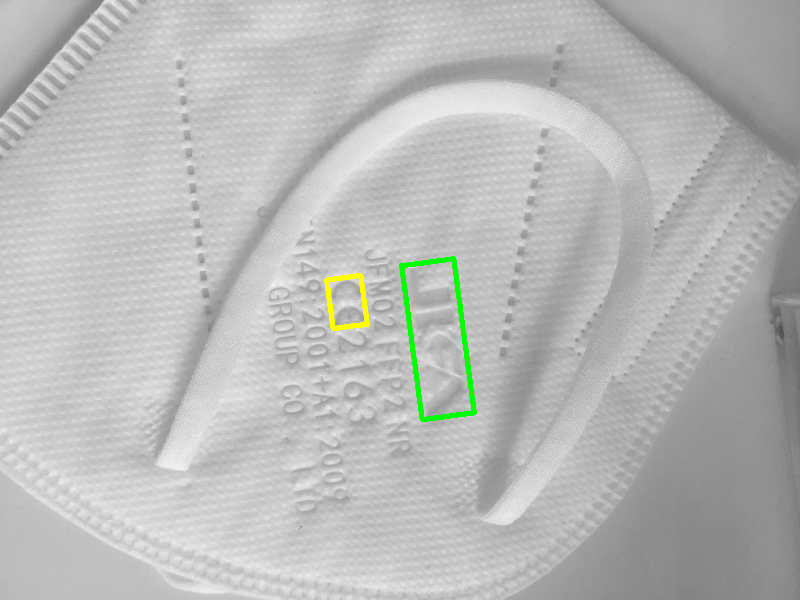
We illustrate this using an example in which we search for two different text parts punched on a fabric. They are illustrated in Figure 1.
Step 1: Create the models
The models are created the usual way.
create_ncc_model (ImageReducedCE, 'auto', rad(0), rad(360), 'auto', 'use_polarity', ModelIDCE)
create_ncc_model (ImageReducedBrand, 'auto', rad(0), rad(360), 'auto', 'use_polarity', ModelIDBrand)
ModelIDs := [ModelIDCE, ModelIDBrand]
When searching for multiple models simultaneously, it may be useful to store the information about the models, that is, the XLD models, in tuples.
Step 2: Access the model XLD
The XLD contours corresponding to the two models are accessed with the operator get_ncc_model_region.
get_ncc_model_region (ModelRegionCE, ModelIDCE)
gen_contour_region_xld (ModelRegionCE, ModelContoursCE, 'border_holes')
get_ncc_model_region (ModelRegionBrand, ModelIDBrand)
gen_contour_region_xld (ModelRegionBrand, ModelContoursBrand, 'border_holes')
Step 3: Save the information about the models in tuples
To facilitate the access to the shape models later, the XLD contours are saved in tuples in analogy to the model IDs.
However, when concatenating XLD contours with the operator concat_obj, one must keep in mind that XLD objects are already tuples as they may consist of multiple contours!
To access the contours belonging to a certain model, you therefore need the number of contours of a model and the starting index in the concatenated tuple.
The former is determined using the operator count_obj.
The contours of the “CE” identifier start with the index 1, the contours of the brand name start with index 1 plus the number of contours of the “CE” identifier model.
count_obj (ModelContoursCE, NumContoursCE)
count_obj (ModelContoursBrand, NumContoursBrand)
concat_obj (ModelContoursCE, ModelContoursBrand, ShapeModels)
StartContoursInTuple := [1,NumContoursCE + 1]
NumContoursInTuple := [NumContoursCE, NumContoursBrand]
Step 4: Search the model instances
In every image there is only a single face mask and hence for each model only a single instance is to be detected.
As a consequence we set NumMatches to [1,1], as explained above.
find_ncc_models (Image, ModelIDs, rad(0), rad(360), [0.5, 0.43], [1,1], 0.5, 'true', 0, Row, Column, Angle, Score, Model)Step 5: Access the found instances
In case of multiple matches the output parameters Row etc. contain tuples of values, which are typically accessed in a loop, using the loop variable as tuple index.
When searching for multiple models, a second index is involved:
The output parameter Model indicates to which model a match belongs.
This is done by storing the index of the corresponding model ID within the tuple of IDs specified in the parameter ModelIDs.
This may sound confusing, but can be realized in an elegant way in the code:
For each found instance, the model ID index is used to select the corresponding information from the tuples created above.
As already noted, the XLD representing the model can consist of multiple contours.
Therefore, you cannot access them directly using the operator select_obj.
Instead, the contours belonging to the model are selected via the operator copy_obj, specifying the start index of the model in the concatenated tuple and the number of contours as parameters.
Note that copy_obj does not copy the contours, but only the corresponding HALCON objects, which can be thought of as references to the contours.
NumMatches := |Score|
for Match := 0 to NumMatches - 1 by 1
    ModelIndex := Model[Match]
    hom_mat2d_identity (HomMat2DIdentity)
    hom_mat2d_rotate (HomMat2DIdentity, Angle[Match], 0, 0, HomMat2DRotate)
    hom_mat2d_translate (HomMat2DRotate, Row[Match], Column[Match], MoveAndScalingOfObject)
    *
    copy_obj (ShapeModels, ShapeModel, StartContoursInTuple[ModelIndex], NumContoursInTuple[ModelIndex])
    affine_trans_contour_xld (ShapeModel, ModelAtNewPosition, MoveAndScalingOfObject)
    dev_display (ModelAtNewPosition)
    affine_trans_pixel (MoveAndScalingOfObject, 0, 0, RowTrans, ColTrans)
    gen_cross_contour_xld (Cross, RowTrans, ColTrans, 6, Angle[Match])
    dev_display (Cross)
endfor
Note that you can alternatively also visualize the ncc matches conveniently using the visualization procedure.
dev_display_ncc_matching_results ([ModelIDCE, ModelIDBrand], VisualizationColor, Row, Column, Angle, ModelIndex)Specifying the needed accuracy🔗
Affected parameter
SubPixel
The parameter SubPixel specifies if the position and orientation of a found model instance is returned with pixel accuracy (SubPixel set to 'false') or with subpixel accuracy (SubPixel set to 'true').
As the subpixel accuracy is almost as fast as the pixel accuracy, we recommend to set SubPixel to 'true'.
Restrict the number of pyramid levels🔗
Affected parameter
NumLevels
The parameter NumLevels, which you already specified when creating the model, allows you to use a different (in most cases a more restrictive) value in the search process.
By using the value '0' for NumLevels, the value specified when creating the model is used.
Optionally, NumLevels can contain a second value, so that you can specify not only the highest but also the lowest pyramid level used for the search.
If the search is finished on a pyramid level that is higher than the first pyramid level, which corresponds to the original, full-sized image, the search becomes faster.
On the other hand, the search is then also less robust and less accurate.
Set timeout🔗
Affected parameter
'timeout'
If your application demands that the search must be carried out within a specific time, you can set the parameter 'timeout' with the operator set_ncc_model_param to specify the maximum period of time after which the search is guaranteed to terminate, that is, you can make the search interruptible.
But note that for an interrupted search no result is returned.
Additionally, when setting the timeout mechanism, the runtime of the search may be increased by up to 10%.