Prepare the template🔗
After an optional preprocessing of the reference image, the first step of the matching is to prepare a template of the object of interest. From this, a model is derived, which in a later step is used to locate instances of the object in search images. In most cases, the model is derived from a reference image, which is reduced to a so-called template image.
Reducing the reference image to a template image🔗
To create a model from a reference image, which is the common way for most matching approaches, the reference image must be reduced to a template image that contains only those structures of the reference image that are needed to derive the model.
For this, you select a region within the reference image that shows the part of the image that should serve as the template or, respectively, from which the model should be derived.
After selecting the region, the domain of the reference image is reduced to an ROI using the operator reduce_domain.
The resulting image is our template image, which is input to one of the approach-specific operators that are provided for the actual model generation.
Note that a region and therefore also the model can have an arbitrary shape.
Summarized, a region can be selected, for example, by the following means:
-
A region can be specified by explicitly defining its parameters. That is, HALCON offers multiple operators to create regions, ranging from standard shapes like rectangles (
gen_rectangle2) or ellipses (gen_ellipse) to free-form shapes (for example,gen_region_polygon_filled). To use the operators, you need the parameters of the shape you want to create, for example, the position, size, and orientation of a rectangle or the position and radius of a circle. If these parameters are not explicitly known, you can get them using draw operators, that is, operators that let you draw a shape on the displayed image and then return the shape parameters. -
A region can be specified by image processing using, for example, a blob analysis. Then, the image is segmented, for example, using a
thresholdoperator, and the obtained region is further processed to select only those parts of it having specific features (commonly applied operators are, for example,connection,fill_up, andselect_shape). In HDevelop, you can determine suitable features and values using the dialog Visualization → Feature Inspection. More complex regions can be created using set theory, that is, by adding or subtracting standard regions using the operatorsunion2anddifference. That way, for example, also ring-shaped ROIs can be created like is shown in refsec{general:template:influenceroi:outline}.
Before creating the ROI, it is often suitable to optimize the reference image by a preprocessing.
About the influence of the region of interest🔗
The ROI used when creating the model determines the quality of the model and thus strongly influences the success of the later search.
If the ROI is selected inappropriately, no or the wrong image structures are identified as instances of the model in the search images. So, if a matching is not successful or the result is inaccurate, you should have a very critical look at your ROI and try to enhance it such that the model represents the object and not the clutter that may be contained in the image.
For approaches that are based on contours like shape-based matching and local or perspective deformable matching, you can use the operator inspect_shape_model to visually check a potential model.
To create a model of good quality, you must pay attention to the proper selection of the ROI’s center, that is, the point of reference as well as to the proper selection of the ROI’s outline.
About the point of reference🔗
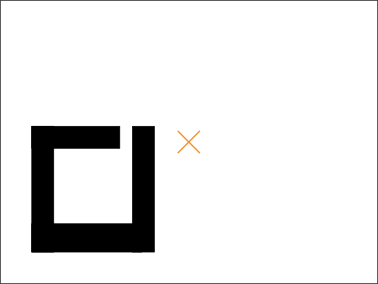
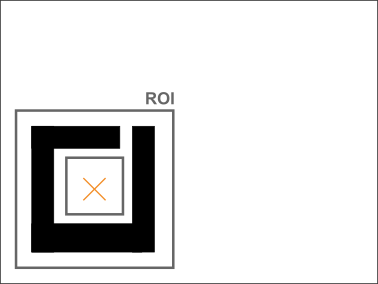
The ROI on the one hand influences the quality of the model and thus the general success of the subsequent matching. On the other hand, also the numerical results returned by the matching are influenced. In particular, the center point of the ROI by default acts as the so-called point of reference of the model for the estimated position, rotation, and scale. Note that if no ROI is selected, the point of reference is located at the center of the image (see Table 1).
 |
 |
|---|---|
| No ROI selected | Appropriate ROI selected |
The point of reference also influences the success of the later search, as an object is only found if the point of reference lies within the image, or more exactly, within the domain of the image. That is, if a point of reference is placed away from the actual object (as shown, for example, in Table 1), a later matching might fail although the object itself is fully contained in the search image, just because the point of reference is not contained. Thus, it is very important to select an appropriate ROI even if the template object is the only object in the image. Note that for some approaches the matches may be refined, which can result in found matches having their point of reference slightly outside the image domain.
For some approaches, after creating a model, you can modify the point of reference. But as a modified point of reference may lead to a decreased accuracy of the estimated position, if possible, the point of reference should not be changed! Additionally, even if you modified the point of reference, the test, if the point of reference lies within the domain of the search image, is always performed for the original point of reference, i.e., the center point of the initially selected ROI. Thus, the selection of an appropriate ROI for the template image is important right from the start.
About the outline of the ROI🔗
The quality of the model and thus the accuracy of the result of the matching is influenced strongly by the model’s outline, in particular, by its shape, size, and orientation.
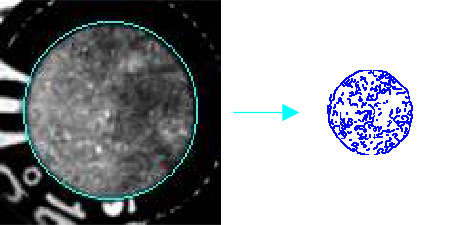
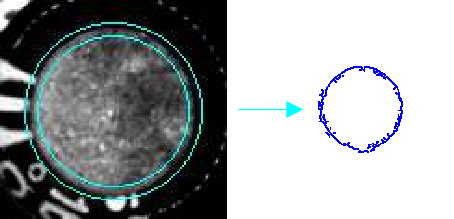
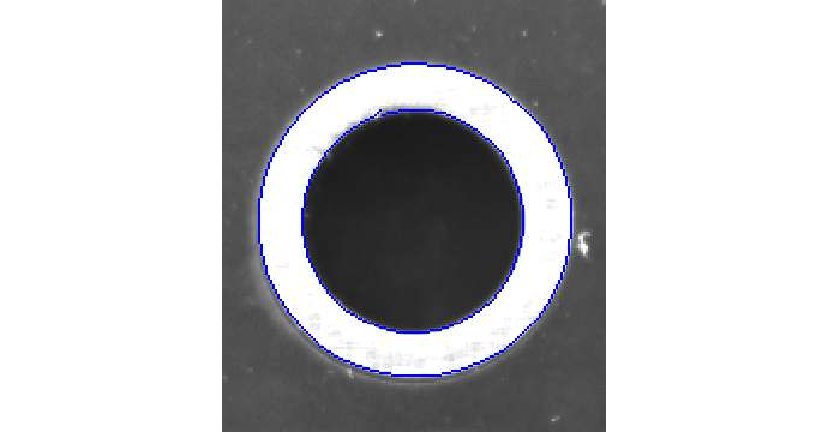
To allow a good quality of the model, the ROI should be selected so that noise or clutter are minimized. This can be obtained, for example, by “masking” parts of the object that contain clutter. In Table 2, for example, the model of a capacitor is needed for shape-based matching. To exclude clutter as much as possible, instead of a circular ROI a ring-shaped ROI is created using the difference between two circular regions.
draw_circle (WindowHandle, ROI1Row, ROI1Column, ROI1Radius)
gen_circle (ROI1, ROI1Row, ROI1Column, ROI1Radius)
gen_circle (ROI2, ROI1Row, ROI1Column, ROI1Radius - 8)
difference (ROI1, ROI2, ROI)
reduce_domain (ModelImage, ROI, ImageROI)
 |
 |
|---|---|
| Model for full-circle ROI | Model for ring-shaped ROI |
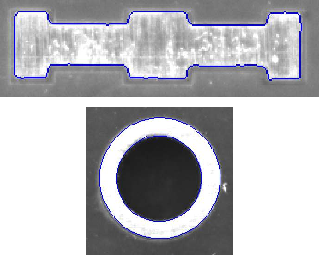
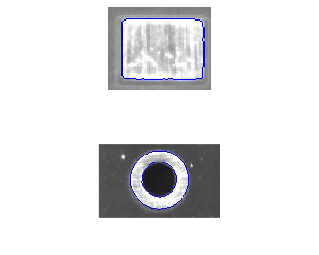
Additionally, the accuracy of the location of the object is influenced by the number of contour points contained in the model. That is, a model with many contour points can be found more accurately than a model with few contour points (see Table 3).
 |
 |
|---|---|
| More accurate location | Less accurate location |
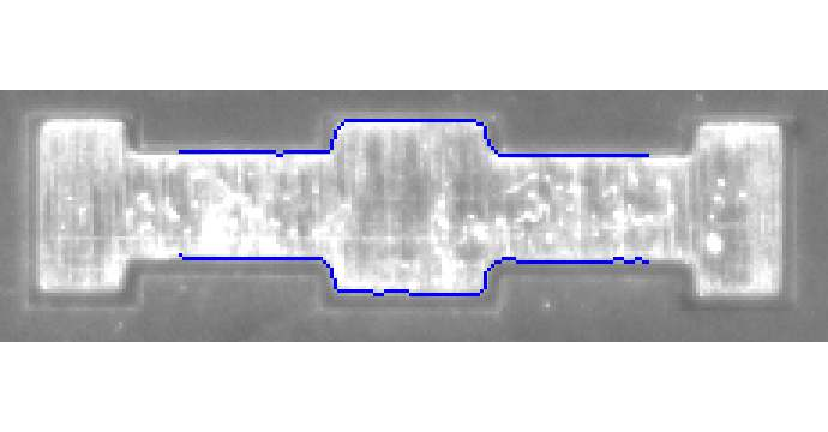
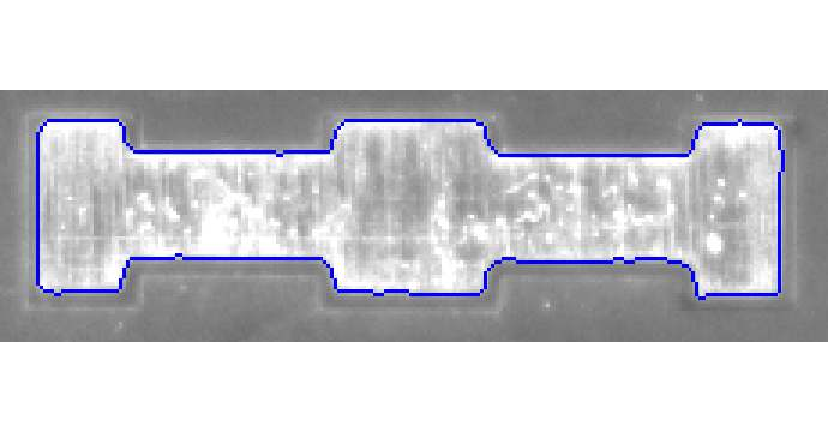
Furthermore, the accuracy of a matching result can vary for different directions, depending on the direction of the contours that are contained in the model. If, for example, a model consists mainly of horizontal contours as depicted in , a good vertical accuracy can be obtained but the horizontal accuracy is bad. The model in contains contours in vertical and horizontal direction. Thus, a sufficient accuracy in both directions can be obtained. The optimal pattern for a good accuracy in all directions would be a circular structure as shown in . So please, carefully select the model so that it contains enough contours that are perpendicular to the direction that you want to inspect or measure after the matching.
 |
 |
 |
|---|---|---|
| Good vertical but bad horizontal accuracy | Sufficient accuracy in both direction | Optimal pattern for good accuracy in all directions |
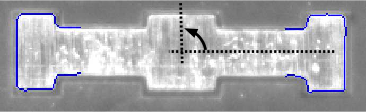
The accuracy of the rotation angle returned by the matching depends on the one hand on the distance of the contour points from the rotation center and on the other hand on the orientation of the contour in relation to the rotation center (see Table 5).
 |
 |
|---|---|
| Less accurate angle | More accurate angle |
In particular, points that are far away from the rotation center can be determined more accurately. That is, assuming the same number of model contours, the orientation of a contour can be determined more accurately if the rotation center lies in the center of the contour and the contour is elongated.
About synthetic models as alternatives to template images🔗
For some matching approaches, synthetic models can be used instead of a template image. Three means to work with synthetic models are available:
- Create a synthetic template image.
- Use XLD contours directly as models.
- Use a DXF model to derive XLD contours, which then can be used directly as model or which can be used to create a synthetic template image.
Note
On synthetic images there is a very sharp gray value transition from the the model to the background.
Using such an image for the model definition may lead to automatically estimated parameter values which are not suitable in search images (where the gray values fluctuate and the transition is flattened).
An example for such a parameter is Contrast.
Furthermore, sharp gray value transitions may lead to ringing artifacts on higher pyramid levels.
Hence, when generating the model using synthetic images we recommend to inspect the created model and eventually readjust certain automatically guessed parameters.
About synthetic template images{#mvtasks-position_recognition-2d-shape-general-prepare_template-synthetic_models-image}🔗
Synthetic template images are suitable mainly for correlation-based matching and all 2D approaches that are based on contours, that is, shape-based, local deformable, and perspective deformable matching.
Depending on the application it may be difficult to create a suitable model from a reference image because no image is available that contains a perfect, easy to extract instance of the object.
An example of such a case is depicted in Figure 1 for the location of capacitors. The task seems to be simple at first, as the capacitors are represented by prominent bright circles on a dark background. But the shape model that is derived from a circular ROI is faulty, because inside and outside the circle the image contains clutter, that is, high-contrast points that are not part of the object. A better result is obtained for a ring-shaped ROI that “masks” the parts of the object containing clutter. Nevertheless, the model is still not perfect, because parts of the circle are missing and the model still contains some clutter points.
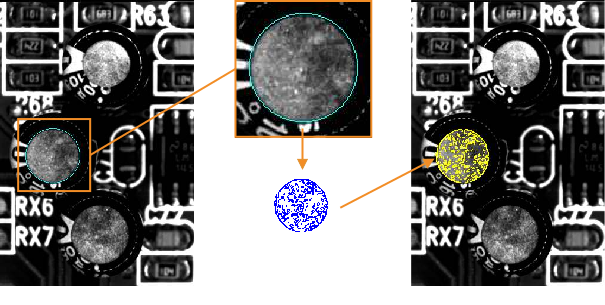
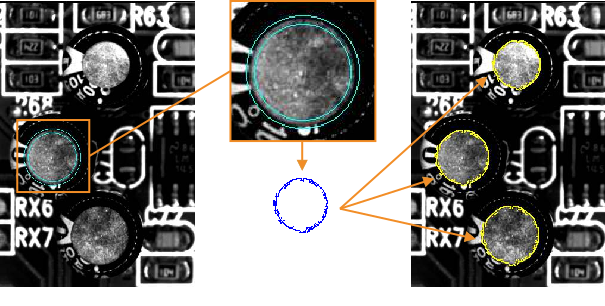
In such a case, it is often better to use a synthetic template image. How to create such an image for the capacitors is explained below.
To follow the example actively, start the example program %HALCONEXAMPLES%\solution_guide\matching\synthetic_circle.hdev.
Step 1: Create an XLD contour
First, we create a circular region using the operator gen_ellipse_contour_xld.
You can determine a suitable radius by inspecting the image with the HDevelop dialog Visualization → Zoom Window or more conveniently create the region using the ROI tool in HDevelop’s graphics window.
RadiusCircle := 43
SizeSynthImage := 2 * RadiusCircle + 10
gen_ellipse_contour_xld (Circle, SizeSynthImage / 2, SizeSynthImage / 2, 0, RadiusCircle, RadiusCircle, 0, 6.28318, 'positive', 1.5)
Note that the synthetic image should be larger than the region because also pixels outside the region are used when creating the image pyramid for the shape-based matching, which in this case is the selected matching approach.
Step 2: Create an image and insert the XLD contour
Then, we create an empty image using the operator gen_image_const and insert the XLD contour with the operator paint_xld.
In
the resulting image is depicted.
gen_image_const (EmptyImage, 'byte', SizeSynthImage, SizeSynthImage)
paint_xld (Circle, EmptyImage, SyntheticModelImage, 128)
Step 3: Create the model
The model is created and trained using the synthetic image.
create_generic_shape_model (ModelID)
set_generic_shape_model_param (ModelID, 'iso_scale_min', 0.8)
set_generic_shape_model_param (ModelID, 'iso_scale_max', 1.2)
train_generic_shape_model (SyntheticModelImage, ModelID)
shows the corresponding model region and shows the search results. Note how the image itself, that is, its domain, acts as the ROI in this example.
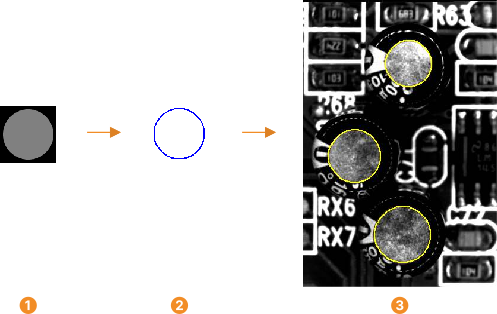
paint region into synthetic image
corresponding model
result of the search