Optimization🔗
Enhancing robustness🔗
For a robust shape-based 3D matching it is important that the edges of the object are clearly visible in the image. Thus, the following general tips may help you to enhance your application already when acquiring the images of the object:
- Avoid backgrounds with low contrast to the object.
- If possible, use a background with a good contrast to the object, so that the background can be clearly separated from the object.
- Carefully adjust the lighting for the image acquisition.
- To get clearly visible edges of the object in your images, take special care of the lighting conditions.
In general, the edges that are included in the 3D shape model should also be visible in the image.
The edges that are included in the model can be adjusted with the generic parameter
min_face_angleofcreate_shape_model_3d. The effect of this parameter can be inspected by visualizing the resulting edges with the procedureinspect_object_model_3d, which can be found in the example program%HALCONEXAMPLES%\hdevelop\Applications\Position-Recognition-3D\3d_matching_clamps.hdev. - If possible, use multi-channel images.
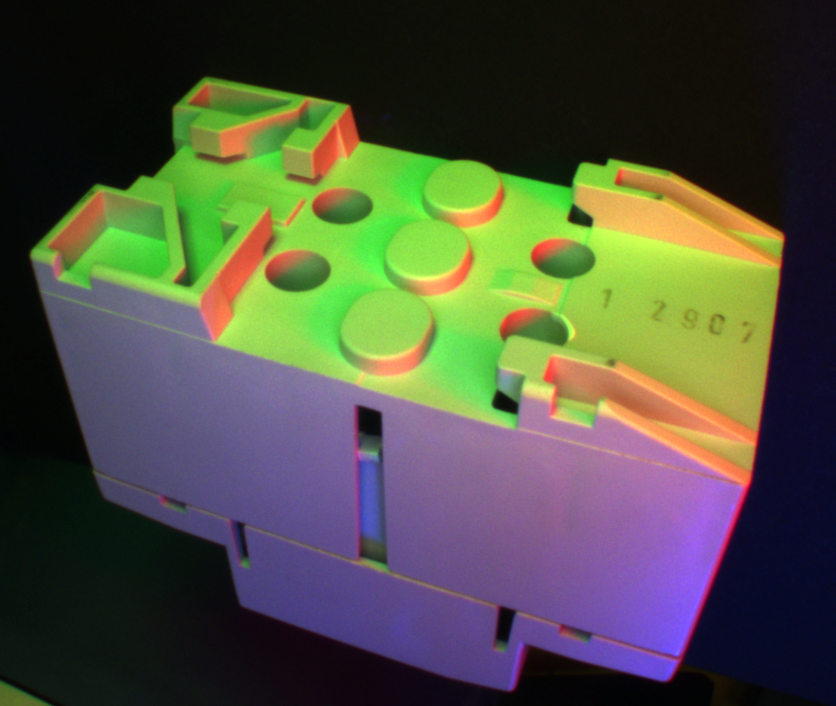
- Multi-channel, for example, color images contain more information and thus typically lead to a more robust edge extaction. An especially robust edge extraction can be obtained if color images are used and the object is illuminated from different directions by three differently colored, typically red, green and blue, light sources (see Figure 1).
Enhancing speed🔗
There are several means to speed up the shape-based 3D matching:
- Use a homogeneous background during the image acquisition.
- Generally, you should try to adjust the lighting for the image acquisition so that the edges of the object but no surface texture are visible in the images.
- Reduce the resolution of the image.
- A reduced resolution of the image can speed up the online as well as the offline phase of the shape-based 3D matching, because less 2D projections have to be generated.
Note that if you reduce the resolution of the images (for example, from 1 Megapixel to 640x480 pixels), you must also change the camera parameters used for the creation of the 3D shape model by adapting
Sx,Sy,Cx,Cy,ImageWidth, andImageHeight(see the description ofwrite_cam_parin the operator referencel). For example, if the image is scaled down by a factor of 0.5,SxandSymust be multiplied by 2, whereasCx,Cy,ImageWidth, andImageHeightmust be multiplied by 0.5. - Use a region of Interest.
- Using a region of interest, you can speed up the search. The more the region in which the objects are searched can be restricted, the faster and more robust the search will be.
- Restrict the pose range.
- The more the pose range is restricted while creating a 3D shape model with
create_shape_model_3d, the faster is the search process. But note that only those object instances are found that correspond to the selected pose range. - Eliminate unnecessary edges from the 3D shape model.
- If edges are contained in the 3D shape model that are not visible in the search image, the performance, i.e., the robustness and speed, of the shape-based 3D matching decreases.
Especially for objects that contain curved surfaces, which are approximated by multiple planar faces in the 3D object model, the generic parameter
min_face_angleshould be adjusted withincreate_shape_model_3dto eliminate unnecessary edges from the 3D shape model. To check which edges are visible with a specific minimum face angle, you can display the corresponding contours with the operatorproject_object_model_3d. - Select the value for the number of used pyramid levels as large as possible.
- In
create_shape_model_3das well as infind_shape_model_3d, the number of used pyramid levels can be set by the parameternum_levels. To speed up the search process, the value should be as large as possible, but the object should be still recognizable in the model. To check a view on the object in a specific pyramid level, you can query the corresponding contours by the operatorget_shape_model_3d_contours. - Disable the pregeneration of the model views on lower pyramid levels.
- When specifying a large pose range, the number of model views on lower pyramid levels may become very large, which leads to a slow model generation and high memory consumption.
To speed up the model generation, you can disable the pregeneration of the model views on lower pyramid levels using the generic parameter
'lowest_model_level'withincreate_shape_model_3d. Note that you nevertheless obtain a high accuracy during the search withfind_shape_model_3d, because the pose is still refined (but now on the fly) on the original pyramid level. - Select the value for
MinScoreas large as possible. - In
find_shape_model_3dyou can adjust the parameterMinScore. A largeMinScorespeeds up the search process, but allows less invisible edges for the object, so that possibly some objects are not recognized. - Select the value for
Greedinessas large as possible. - In
find_shape_model_3dyou can adjust the parameterGreediness. A largeGreedinessspeeds up the search process. But because the search becomes less robust, possibly some objects are not recognized. - Adjust the pose refinement.
-
In
find_shape_model_3dyou can adjust the generic parameterpose_refinement. If it is set tonone, the search is fast but the pose is determined with limited accuracy. A trade-off between runtime and accuracy is to set the pose refinement toleast_squares_high. -
For complex models with a large number of faces it is reasonable to speed up the pose refinement by splitting it such that some of the needed calculations are already performed during the creation of the model. Thus, the generic parameter
'fast_pose_refinement'ofcreate_shape_model_3dis by default set to'true'. This leads to a faster matching but also to a higher memory consumption. If the storage is more critical than the speed of the matching, you can set the parameter to'false'. - Check the setting of
border_model. - In
find_shape_model_3dyou can adjust the generic parameterborder_model. If it is set totrue, also objects that extend beyond the image borders can be found. Because this is rather time-consuming if you only search for objects that are completely contained in the image, we recommend to leave the default valuefalseunchanged. - Speed up the visualization.
- When visualizing the 3D object model or the 3D shape model by projecting them into the image using
project_object_model_3dorproject_shape_model_3d, respectively, you can speed up the visualization by setting the parameterHiddenLineRemovaltofalse. Then, also those edges of the model are visualized that would be hidden by faces.
Tips and tricks for problem handling🔗
In the following, the focus is on the handling of specific problems, i.e., possible reasons for an unsuccessful, erroneous, or very slow recognition or model generation are introduced.
The model generation is very slow🔗
The computation time of the model generation increases quadratically with the number of faces in the CAD model.
Thus, if the model generation with create_shape_model_3d is very slow, most possibly the CAD model is too complex.
Note that in most cases, a very coarse model is sufficient to locate a 3D object with shape-based 3D matching. Thus, in case of a very slow model generation, you should eliminate all unimportant details from your model using suitable CAD software.
Alternatively, you can also increase the value of the generic parameter 'lowest_model_level' to work with a coarser model.
Additionally, only the part of the object that is relevant for the search should be contained in the model. Thus, sometimes further modifications of the CAD model using suitable CAD software might be necessary.
The object is not found🔗
If the object is not found with find_shape_model_3d, typically the reason can be found in at least one of the following problems:
-
The value of the parameter
MinScorewas chosen too large. Check if the object can be found if matches with a smaller score are accepted. But note that the possibility of finding false matches increases with a decreasingMinScorevalue. -
The value of the parameter
Greedinesswas chosen too large. A large value leads to a fast but less robust search. Check if the object can be found with a smallerGreedinessvalue. -
The value of the parameter
NumLevelswas estimated or chosen too large. Note that the shape representation of the views on the highest pyramid level must still be recognizable and must contain enough model points. You can visually check the views on the specific pyramid levels usingget_shape_model_3d_contours. -
The value of the generic parameter
'min_face_angle'was chosen too small when generating the 3D shape model withcreate_shape_model_3d. Thus, the 3D shape model contains also non-visible object edges. Note that after creating a model, you can visually check the model edges on the specific pyramid levels usingget_shape_model_3d_contours. Before creating a model, you can display the contours of the underlying 3D object model with a specific minimum face angle using the operatorproject_object_model_3d. -
The chosen reference pose or the pose range are not correct. Check whether the created views cover the desired pose range. Note that you can query the number of created views for each pyramid level using
get_shape_model_3d_params(settingGenParamNameto'num_views_per_level'). Then, you can visually check selected views out of this range of views usingget_shape_model_3d_contours. -
The value of the parameter
MinContrastwas chosen too large when generating the 3D shape model withcreate_shape_model_3d. Thus, edges that belong to the object are not extracted in the search image and the matching score decreases. Check the value ofMinContrastby extracting edges in the search image usingedges_imagewith the parameterFilterset to'sobel_fast'and the parametersLowandHighset to the value ofMinContrast. -
The camera parameters are not accurate enough. Thus, the projected model and the imaged object do not accurately fit together. If possible, improve the accuracy of the calibration. Otherwise, stop the search on a higher pyramid level where the differences between the projected model and the imaged object are small enough. To stop the search on a higher pyramid level, the parameter
NumLevelsis set as a tuple consisting of the highest and lowest used pyramid levels. -
The projected model and the imaged object do not accurately fit together because the CAD file is not modeled accurately enough or the objects do not exactly correspond to the model, for example, because of tolerances at the fabrication. In the first case, if possible, improve the accuracy of the CAD model. Otherwise, stop the search on a higher pyramid level where the differences between the projected model and the imaged object are small enough. To stop the search on a higher pyramid level, the parameter
NumLevelsis set as a tuple consisting of the highest and lowest used pyramid levels. -
Some of the object edges are no “sharp” edges. Model the round edges in the CAD model or stop the search on a higher pyramid level where the differences between the projected model and the imaged object are small enough. To stop the search on a higher pyramid level, the parameter
NumLevelsis set as a tuple consisting of the highest and lowest used pyramid levels. -
The object edges are not visible in the image. To enhance the visibility of the edges during the image acquisition, follow the advice for a robust shape-based matching.
The object is found in a wrong pose🔗
If the object is found with find_shape_model_3d, but the estimated pose is wrong, typically the reason can be found in at least one of the following problems:
-
The value of the parameter
MinScorewas chosen too small so that false matches could be found. Check if the object still can be found with a largerMinScorevalue. -
The value of the generic parameter
'min_face_angle'was chosen too large when generating the 3D shape model withcreate_shape_model_3d. Thus, the 3D shape model does not contain all visible object edges. Note that after creating a model, you can visually check the model edges on the specific pyramid levels usingget_shape_model_3d_contours. Before creating a model, you can display the contours of the underlying 3D object model with a specific minimum face angle using the operatorproject_object_model_3d. -
The value of the parameter
MinContrastwas chosen too small when generating the 3D shape model withcreate_shape_model_3d. This leads to clutter edges in the search image. Check the value ofMinContrastby extracting edges in the search image usingedges_imagewith the parameterFilterset to'sobel_fast'and the parametersLowandHighset toMinContrast. -
The background contains too much clutter. To solve this problem for one-channel images, you can set
'metric'to'ignore_part_polarity'. But if possible, you should use another background, which is more homogeneous. If the background cannot be changed, you can try to optimize its appearance in the images by using a diffuse lighting source and by adjusting the light’s direction. Note that you can check the background by extracting edges in the search image usingedges_imagewith the parameterFilterset to'sobel_fast'and the parametersLowandHighset to the value ofMinContrast. -
The pose range contains degenerated views, i.e., views that do not significantly represent the object anymore. For example, if a cube is viewed exactly orthogonal to one of its faces, the view collapses from a perspective representation of a 3D cube to a simple square. Such a view may lead to many false matches.
An even more extreme example is an exact side-view on a flat object. There, the view may collapse to a straight line. Such a view would lead to many matches in any search image, even if the actual 3D object is not contained.
Therefore, you should limit the pose range as much as possible and ensure that no degenerated views are contained in the pose range.
- There are too many clutter edges around the object, which is typical for some bin picking applications where objects touch or overlap each other. Try to separate the objects, for example, by dumping the objects onto a plane and/or shaking the bin or plane to equally distribute the objects.
The object pose is estimated with low accuracy🔗
If the object is found with find_shape_model_3d, but the accuracy of the estimated object pose is low, typically the reason can be found in at least one of the following problems:
-
Some of the object edges are no “sharp” edges. Model the round edges in the CAD model or stop the search on a higher pyramid level where the differences between the projected model and the imaged object are small enough. To stop the search on a higher pyramid level, the parameter
NumLevelsis set as a tuple consisting of the highest and lowest used pyramid levels. -
The camera parameters are not accurate enough. Thus, the projected model and the imaged object do not accurately fit together. If possible, improve the accuracy of the calibration.
-
The projected model and the imaged object do not accurately fit together because the CAD file is not modeled accurately enough or the objects do not exactly correspond to the model, for example, because of tolerances at the fabrication. In the first case, if possible, improve the accuracy of the CAD model.
The object recognition is very slow🔗
If the object is found with find_shape_model_3d, but the recognition is very slow, typically the reason can be found in at least one of the following problems:
-
The value of the parameter
Greedinesswas chosen too small. A larger value speeds up the search, but because the search becomes less robust, possibly some objects are not recognized. Thus, you should check if the object can still be found with a largerGreedinessvalue. -
The value of the parameter
MinScorewas chosen too small so that many false matches could be found. Check if the object still can be found with a largerMinScorevalue. -
The value of the parameter
MinContrastwas chosen too small when generating the 3D shape model withcreate_shape_model_3d. This leads to clutter edges in the search image. These clutter edges generate many matching candidates that must be examined. Check the value ofMinContrastby extracting edges in the search image usingedges_imagewith the parameterFilterset to'sobel_fast'and the parametersLowandHighset to the value ofMinContrast. -
The CAD model is very complex and
'fast_pose_refinement'was set to'false'when generating the 3D shape model withcreate_shape_model_3d. As the computation time of the least-squares refinement increases quadratically with the number of faces in the CAD model, you can speed up the recognition by eliminating all important details from the model using your CAD software and setting'fast_pose_refinement'to'true'. -
The image size, especially the extent of the search object in pixels, is very large so that the number of model views on lower pyramid levels becomes very large, too. If you cannot work with images of a reduced resolution, we strongly recommend to restrict the search in the image to an ROI and to increase the value of
'lowest_model_level'when generating the 3D shape model withcreate_shape_model_3d. -
The pose range is too large. When generating the 3D shape model with
create_shape_model_3d, restrict the pose range as much as possible, especially take care ofDistMin.
Additionally, for objects with multiple stable poses you should use multiple models. That is, instead of generating one model that covers the complete pose range, multiple models each covering one stable pose should be used.
Note that you can also restrict the pose range by exploiting rotational symmetries of the object.
- The background contains too much clutter so that the clutter edges in the search image lead to many matching candidates that must be examined.
To solve this problem for one-channel images, you can set
'metric'to'ignore_part_polarity'.
But if possible, you should use another background, which is more homogeneous.
If the background cannot be changed, you can try to optimize its appearance in the images by using a diffuse light source and by adjusting the light’s direction.
Note that you can check the background by extracting edges in the search image using edges_image with the parameter Filter set to 'sobel_fast' and the parameters Low and High set to the value of MinContrast.